See your post before you publish it
Write or paste your post. Put words in bold or italics, make lists, and see what the feed will show before "… more", on desktop and on mobile.
0 / 3,000
Bold and italic are special characters: screen readers read them poorly and LinkedIn search does not find them. Keep them for a few words.
Preview in the feed (approximate)
Your post will show here.
LinkedIn only shows the first three lines before "… more". That is where reading is decided.
What if the post was written from what you live?
Never Boring AI prepares your posts in your voice, with the same preview, and publishes them at the time you choose.
How it works
- Step 1
Write or paste your post
The counter tells you where you stand against LinkedIn's 3,000 characters.
- Step 2
Format it
Bold, italics, bulleted or numbered lists, on the text you select.
- Step 3
Look and copy
The preview shows the first three lines, as in the feed. One click to copy.
Free LinkedIn post preview and formatting
In the feed, LinkedIn only shows the first three lines of a post before "… more". This tool shows you where that cut falls, on desktop and on mobile, and lets you put words in bold or italics. Everything happens in your browser: your text is sent nowhere. Free, no account, no email.
By Maxence Vroilant, founder of Never Boring AI · Updated on
Three lines to convince
What the reader sees before clicking "… more" decides what comes next. The preview shows you those three lines as they display, and they are not the same on a phone.
A bold that is not one
LinkedIn has neither bold nor italics. The tool replaces letters with special characters that look like them: a screen reader reads them badly and search does not find them.
Nothing leaves your browser
Nothing is sent, nothing is saved. You can write a draft here that nobody else will read.
How does it work, in detail?
Three questions, and how we answer each one. Open the one you care about.
Select a passage, then click bold or italics: the letters are replaced with Unicode characters from the mathematical block, which LinkedIn displays as they are. Accented letters keep their accent. The eraser button gives the passage its ordinary letters back.
Lists add a bullet or a number at the start of each selected line.
LinkedIn does not offer bold. You can give the appearance of it with Unicode characters, which is what this tool does: the text can be copied and pasted into LinkedIn as is.
Who makes this tool
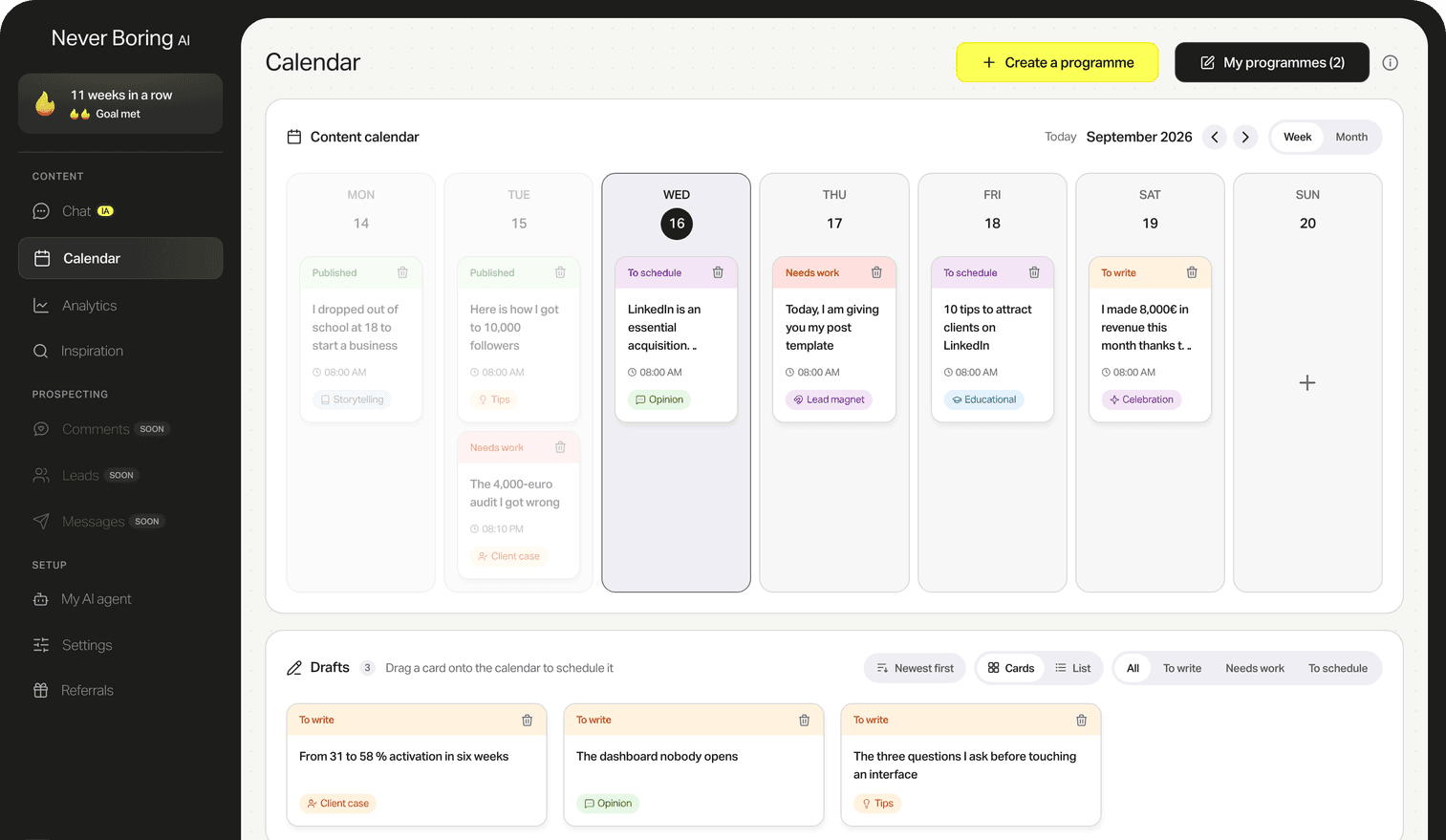
Never Boring AI is an AI agent for LinkedIn, built by Maxence Vroilant. This tool is open: no account, no email, no limit. It reuses a building block of the app, where the agent writes your posts from your experience and keeps your content calendar.
Your first 5 posts are on us
Create your account, no credit card needed, and walk away with your first post in minutes. Your LinkedIn calendar then runs on its own.


Already used by
232 founders