How to cancel LinkedIn Premium on desktop, iPhone, Android
To cancel LinkedIn Premium on desktop, click the Me icon, then Premium features, then Manage subscription. In the LinkedIn Admin Center, open Purchases, select your active subscription and click Cancel subscription. Paid through the App Store? You cancel from your iPhone instead. A paid plan stays active until the end of the period you already paid for, while a free trial ends right away. Every rule below comes from LinkedIn's official help center, checked on October 23, 2026. If you are a freelancer, consultant or solo founder and Premium no longer earns its keep, here is how to leave cleanly, without paying for one more cycle or missing a refund you might qualify for.
💻 How to cancel LinkedIn Premium on desktop
Canceling LinkedIn Premium on desktop means ending the subscription from linkedin.com, inside the LinkedIn Admin Center, the place where your purchases live. It is the right path if you paid LinkedIn directly on its website. The steps, according to LinkedIn's official help center: 1. Click the Me icon at the top of your LinkedIn homepage. 2. Select Premium features from the dropdown. 3. In the left pane, under Plan details, click Manage subscription. 4. The LinkedIn Admin Center opens: click Purchases on the left. 5. Select your active subscription. 6. Under Actions, click Cancel subscription. 7. Click Confirm cancel. Make it all the way to step 7: the confirmation is what actually submits the request. Then take a screenshot and write down the date your access ends. If a billing question ever comes up, you will have proof on hand. One case trips up a lot of people: you signed up from your iPhone's browser, not from the app. In that case LinkedIn processed the payment, and its help center is clear: cancellation is not available in the iOS app. You do it on desktop, with the steps above.
Less Premium, more posts
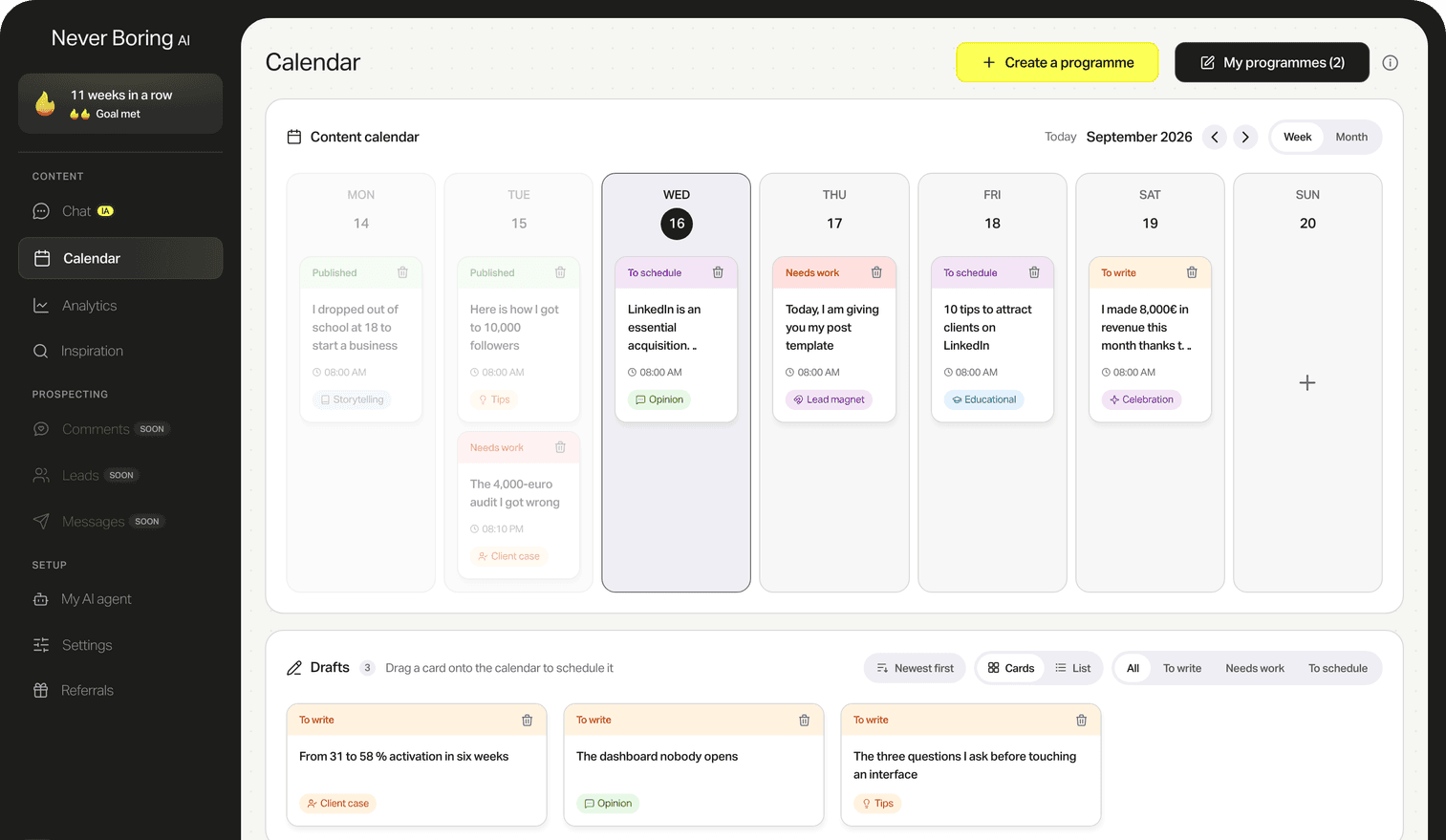
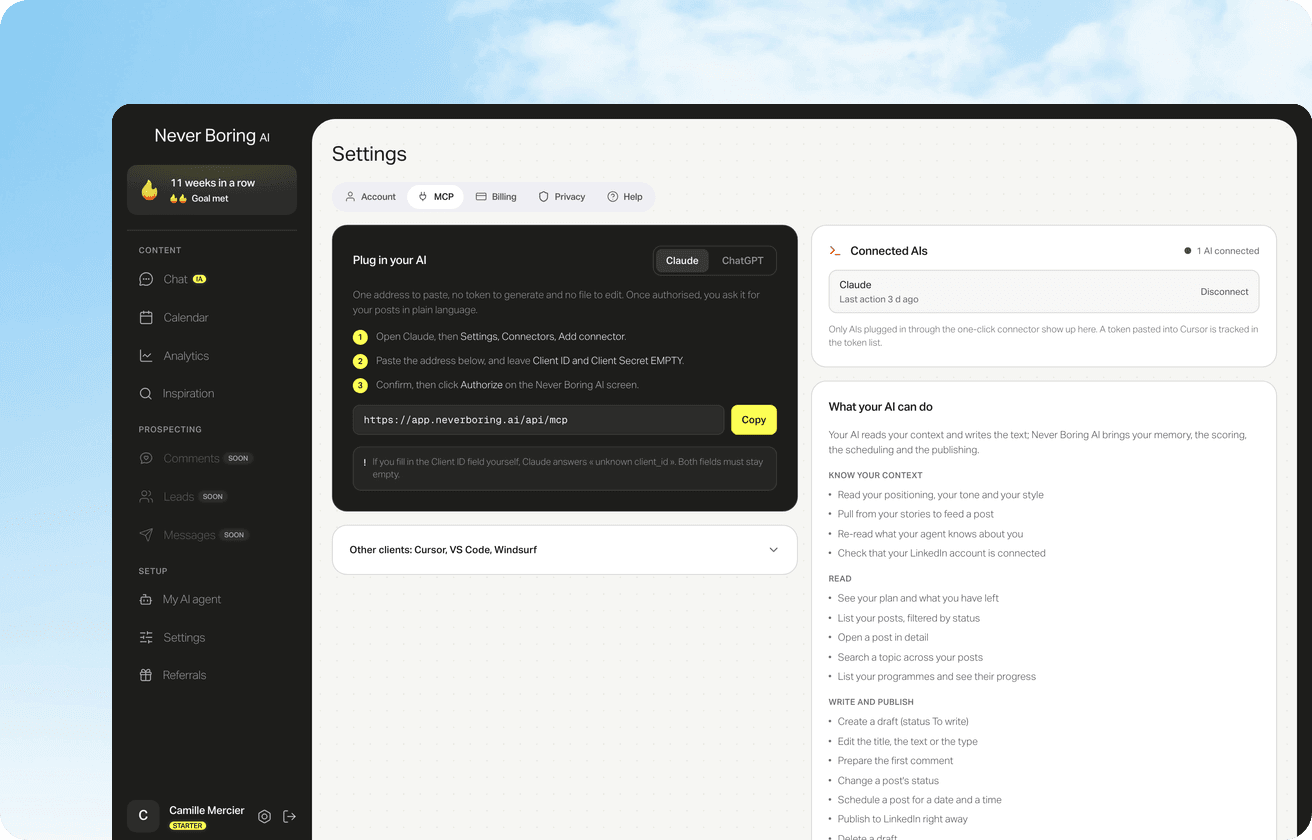
Never Boring AI is an AI LinkedIn post generator that goes beyond generating: an agent that builds your posting plan from your offer and your audience, then drafts each post in your voice.
📱 How to cancel LinkedIn Premium on iPhone and Android
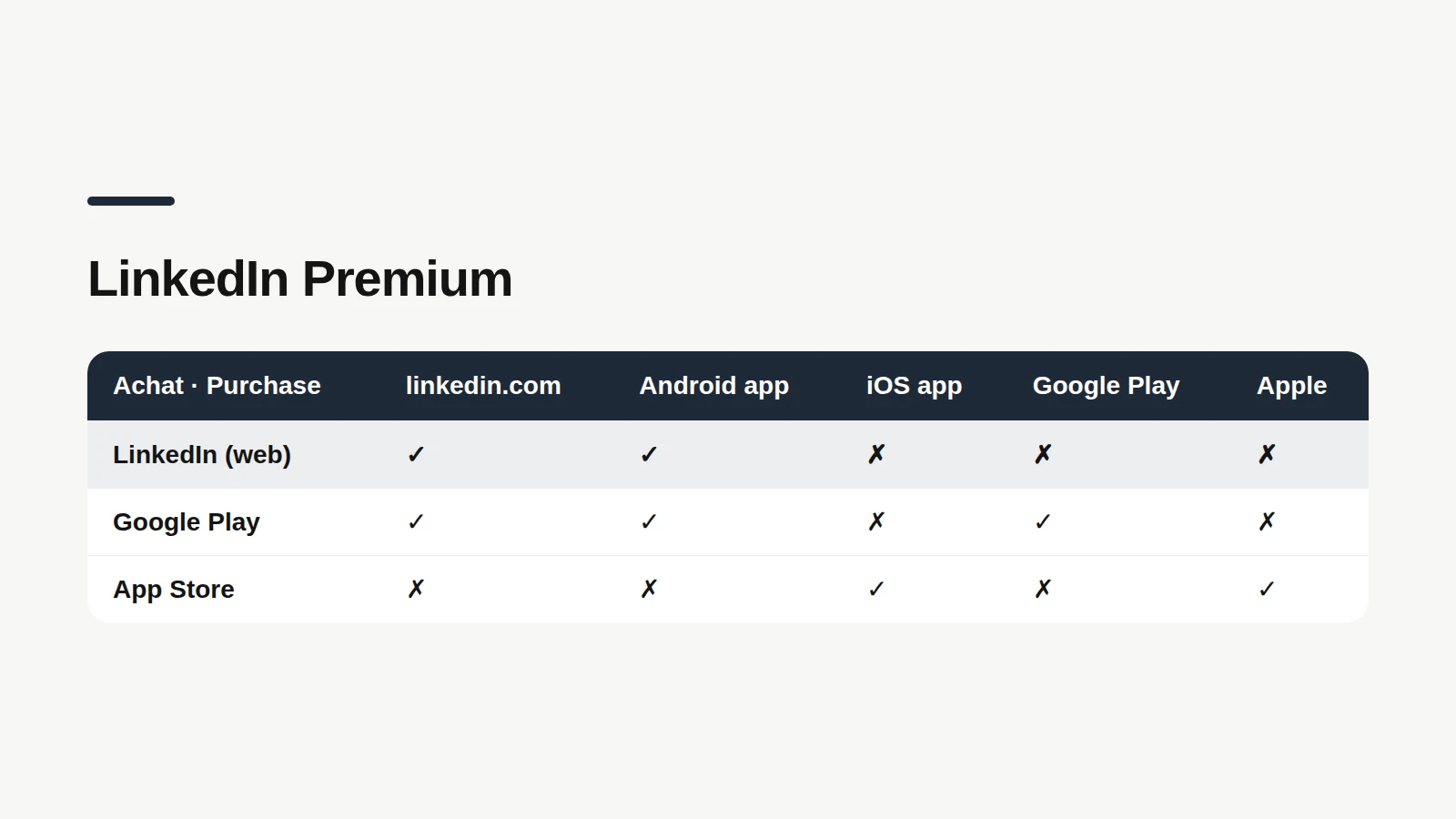
Canceling LinkedIn Premium on mobile means ending the subscription from the LinkedIn app, or from the app store that took your payment. Only one question matters: where did you pay? LinkedIn's help center splits it into three cases. You paid LinkedIn directly (on its website, from a computer or a mobile browser): you can cancel on desktop, or in the LinkedIn app on Android. In the app, tap your profile photo, then Premium features, then Manage your subscription. On the Manage Premium account settings page, tap Cancel subscription and follow the prompts. You paid through Apple's App Store: you cancel from the LinkedIn app on your Apple device, with the same steps, and LinkedIn also points to Apple's own instructions. LinkedIn says it cannot provide billing support for these purchases: payments, refunds and purchase history all go through Apple. One more detail: you have to wait until the current cycle ends before you can buy a new Premium subscription. You paid through Google Play: you have four doors, the LinkedIn desktop site, the LinkedIn app, Google Play on desktop or the Google Play app. Your purchase history lives with Google, on its order history page. Not sure where you paid? Find the receipt, in your inbox, in your Apple account or in your Google account. Whoever issued it tells you which door to use.
How to cancel a LinkedIn Premium free trial without getting charged
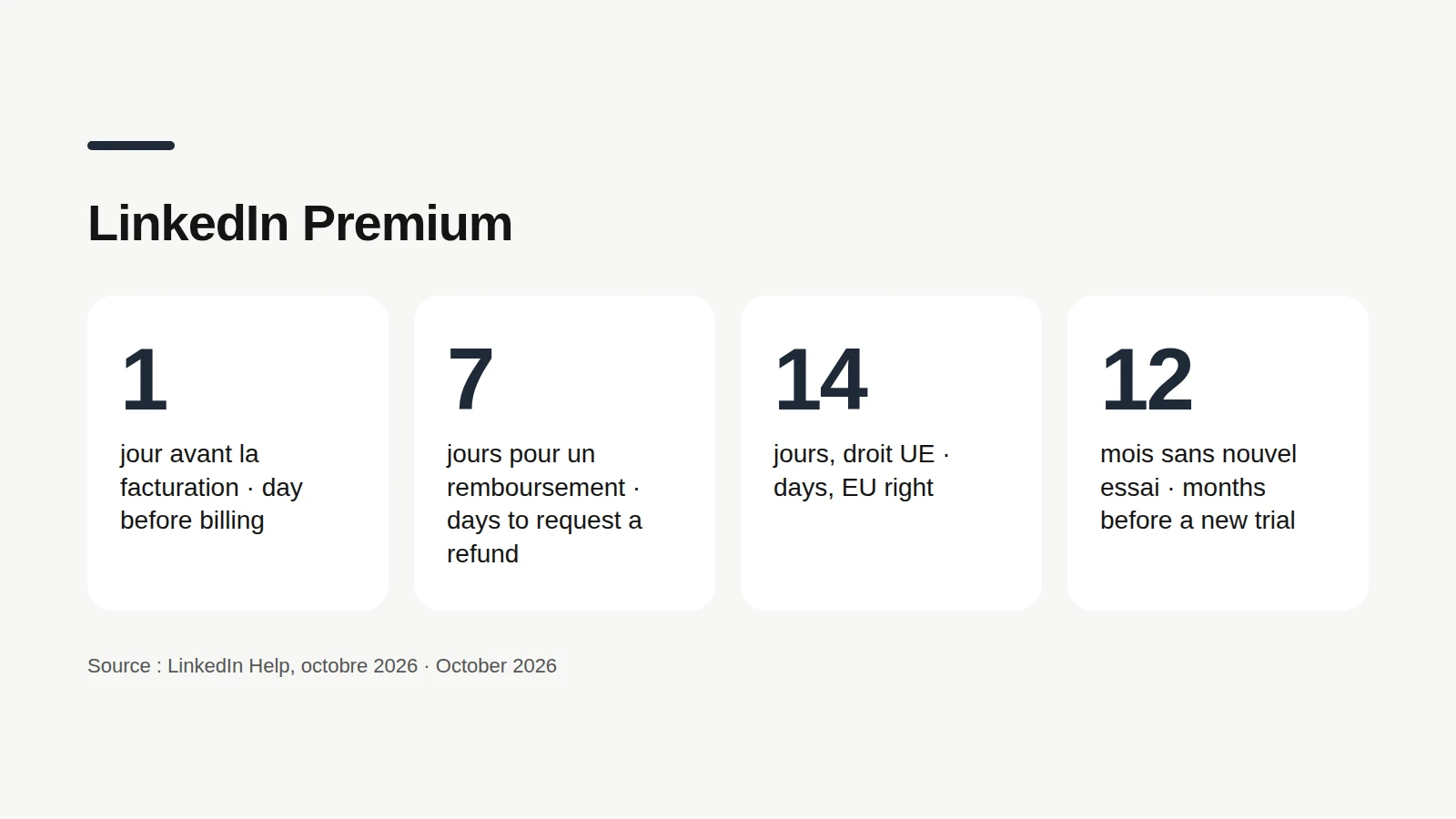
The LinkedIn Premium free trial is a period of free access to paid features that turns into a paid subscription when it ends, unless you cancel first. That is where most nasty surprises happen. The rules LinkedIn spells out: the card you used for the trial is charged automatically one month after the trial starts, and trial length can vary by region and promotion. To avoid that charge, cancel at least one day before the renewal billing date. You can see that date in the LinkedIn Admin Center. For English-speaking members based in the US, billing and renewal dates follow US local time zones, based on when the subscription was activated; everywhere else, LinkedIn uses UTC. Two details change everything. A canceled trial ends immediately: Premium access stops that same day, not at the end of the month. And once you cancel a trial, you are not eligible for another free trial for at least 12 months. So the right moment to cancel a trial is when you are done using it, and no later than the day before billing. One quiet trap: if you signed up from a mobile device, LinkedIn does not send an email reminder before the renewal. Apple and Google may send their own, with no guarantee you will read it. If you signed up on desktop, a reminder goes to your primary email address. Either way, put the date in your calendar two days early. Your bank statement will thank you.
What happens when you cancel LinkedIn Premium?
What happens after you cancel LinkedIn Premium is a return to a Basic account, the free version, where you keep your profile, your connections and your other data, according to LinkedIn's help center. Nobody takes your network away. On a paid plan, Premium access continues until the end of the period you already paid for. After that, you lose: the InMail credits you have accumulated, which cannot be credited back; the full Who's viewed your profile list and specific viewer details; additional insights on job postings; Premium insights on LinkedIn Pages; access to LinkedIn Learning; the Premium badge; unlimited people browsing: you may hit the commercial use limit again. Two tips before you click. Spend your remaining InMail credits, since they vanish with the plan. And if you are on a promotional price, know that a canceled promotion is gone for good: LinkedIn says you won't be able to buy it again at the same price later. That leaves your payment method. You can delete it at the end of your billing cycle, not before: as long as a paid subscription is active, LinkedIn won't let you remove it.

If you cancel LinkedIn Premium, do you get a refund?
A LinkedIn Premium refund means getting back some or all of a subscription charge that already went through. It is not automatic: canceling stops future charges, not the one that just hit your card. You ask for it through the refund request form in LinkedIn's help center. The general rule, according to LinkedIn's refund policy: Premium subscriptions (Career, Business, All-in-One, Company Page, LinkedIn Learning, Recruiter Lite and Sales Navigator) may be refundable within 7 days from the date the subscription is charged, if you have not used Premium. A previous refund may affect your eligibility. The same page lists country rules for people using LinkedIn for themselves rather than for a business. The US is not among the examples listed, so for US members the 7-day window is the rule to remember. The examples: in the European Union, a full refund within 14 days after the subscription begins (and if you started with a free trial, that window starts on day one of the trial, so there is nothing to refund); in Brazil, a full refund if claimed within 7 days of the charge; in Germany, Denmark and the Netherlands, cancellation with one month's notice and a refund of the remaining period. Bought through the App Store? All iOS refunds are issued by Apple, not LinkedIn. Forgot to cancel your trial? That is exactly the case LinkedIn's help center points to its refund policy for: ask quickly, because the 7-day window runs from the charge date.
Can't cancel LinkedIn Premium? The usual reasons
A cancellation that won't go through is, most of the time, a cancellation attempted in the wrong place: the button exists, just not where you are looking. Here are the cases LinkedIn's help center describes. You are looking in the iPhone app but you paid LinkedIn on the web: cancellation isn't available there, use desktop. You are looking on linkedin.com but you paid through the App Store: the subscription is canceled from your Apple device. Your plan is provided by your employer, Sales Navigator for example: your company's account admin is the one who can remove you. You want to close your LinkedIn account: any active subscription has to be canceled first. Paying for Sales Navigator Core yourself? It is canceled in the same place as Premium: LinkedIn Admin Center, Purchases, then Cancel subscription, or Cancel free trial if you are still on a trial.
Cancel without logging in, or downgrade instead
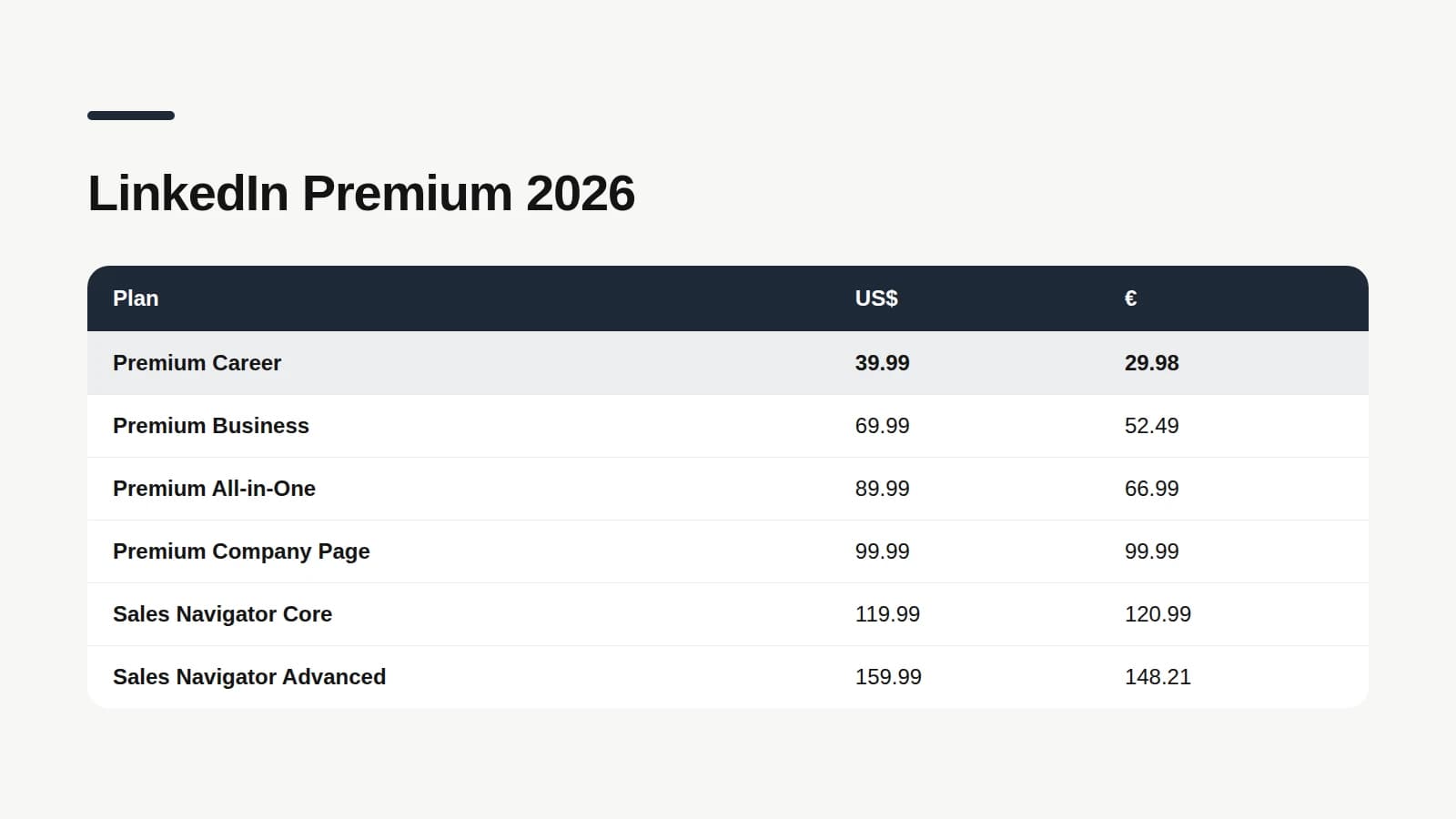
Canceling LinkedIn Premium without logging in is an option LinkedIn offers in certain jurisdictions, and the US is one of them. Its help center says that in places such as Germany and the United States, some Premium subscriptions can be canceled without signing in, through a dedicated form. It is handy if you lost access to the email on your account or can't get past a login problem. If you can sign in, the regular path is still the simplest, because it shows you the exact end date of your access. And if you are stuck on a billing issue, LinkedIn's customer support is the fallback. One alternative worth a look before you leave: downgrading. LinkedIn lets you switch to a lower plan instead of canceling, on the desktop website only. If you pay for Premium Business mainly to see who viewed your profile, Premium Career also includes that list, and in October 2026 its starting price is $30 a month lower. Careful with promotions, though: LinkedIn warns that changing billing frequency, upgrading or downgrading while a promotional offer is applied forfeits that offer for good.
Compare before you downgrade
Career, Business, All-in-One, Sales Navigator: LinkedIn Premium cost plan by plan, taken from LinkedIn's official pages, with what each one includes.
Staying visible on LinkedIn without Premium
Staying visible on LinkedIn without Premium comes down to what you build with the free account: posting, commenting, engaging with your network. None of that requires a subscription, and for a solo founder that is often where visibility is won. For a sense of scale, the Never Boring AI corpus holds 1,165 real, anonymized French-language LinkedIn posts written by 45 authors between March 20, 2025 and October 3, 2026. Half of those posts get between 18 and 101 reactions, around a median of 40, and between 4 and 28 comments. The corpus doesn't say which authors pay for Premium, so it measures no effect of the subscription, and it doesn't cover English-language posts. It only describes what posts any account can publish. What most people lack is not a subscription, it is writing time. That is what Never Boring AI takes care of: the agent builds your posting plan from your offer, your audience and your content pillars, then drafts each post in your voice. You edit, you schedule on LinkedIn. And the InMail credits you are giving up? A thoughtful comment under a post from someone you'd like to meet costs no credits and is seen by their network. On that side, the agent suggests a comment in your voice every day for the profiles you picked, for you to review and approve.
Comment on the right profiles, every day
Pick the profiles that matter for your business: their new posts arrive with a comment suggested in your voice, for you to review and approve.
Bottom line: cancel LinkedIn Premium without surprises
Canceling LinkedIn Premium boils down to one rule: cancel where you paid. Paid LinkedIn, use desktop (Me, Premium features, Manage subscription, Purchases, Cancel subscription) or the Android app. Paid through the App Store, use your Apple device. Paid through Google Play, every door is open. In the US, a form even lets you cancel some plans without signing in. Cancel at least one day before your billing date. A canceled trial stops right away, a paid plan runs until the end of the period you paid for. A refund is possible in some cases, so ask quickly. And your profile, connections and data stay yours. With Premium gone, you still have what matters most: what you post. To keep a steady rhythm without staring at a blank page, there is Never Boring AI.
Your posting plan, no blank page
Tell the agent about your business: it builds your plan, drafts your posts in your voice and schedules them on LinkedIn. Free trial.
What questions come up most often?
The questions that keep coming up on this topic, and how we answer them.
Yes. LinkedIn's help center says you can cancel a Premium subscription, promotion or trial at any time. A canceled paid plan stays active until the end of your current billing cycle, while a canceled free trial ends immediately. To avoid paying for another cycle, cancel at least one day before your next billing date. App Store subscriptions are canceled from your Apple device.
Read next
Your first 5 posts are on us
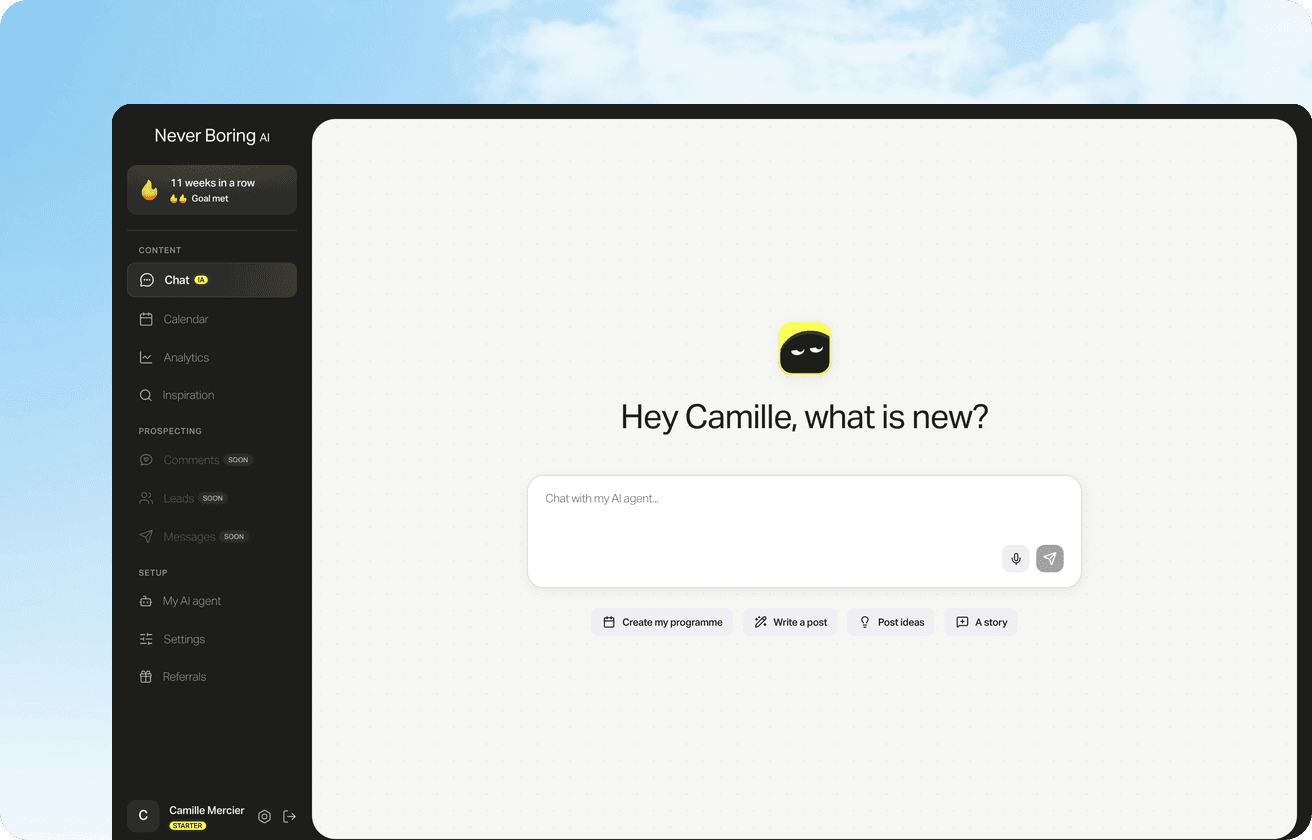
Create your account, no credit card needed, and walk away with your first post in minutes. Your LinkedIn calendar then runs on its own.


Already used by
237 founders