Connect Claude to LinkedIn: the MCP guide
You want to connect Claude to LinkedIn. The short answer: LinkedIn has no official MCP server. This guide explains why, what actually exists, and how to run your LinkedIn workflow from Claude, ChatGPT or Cursor.
What LinkedIn allows and what it blocks
LinkedIn has not published an MCP server. That's not an oversight. LinkedIn's official API is tightly gated: signing a member in (name, photo) and posting to their own profile are open, but detailed analytics, messaging and page management go through partner programmes, reviewed by hand over weeks or months, with no guarantee. LinkedIn has announced nothing about the Model Context Protocol. Source: LinkedIn developer documentation, 2026.
What you find searching 'LinkedIn MCP' on GitHub are community projects (`stickerdaniel/linkedin-mcp-server`, `quinnjr/linkedin-mcp`, `felipfr/linkedin-mcpserver`). They work by driving a browser session logged into your account, and they say so themselves: they are not affiliated with LinkedIn. They need an install on your machine and a session you maintain yourself.
What a tool brings between Claude and LinkedIn
For Claude to act on your LinkedIn account (create a post, schedule it, publish it), it needs a tool that holds the LinkedIn connection and exposes an MCP server. Claude talks to the server, the tool acts on your account. You give Claude no password and no browser session: it gets an access you authorise, and can take back at any time.
Connect Claude to LinkedIn with Never Boring AI
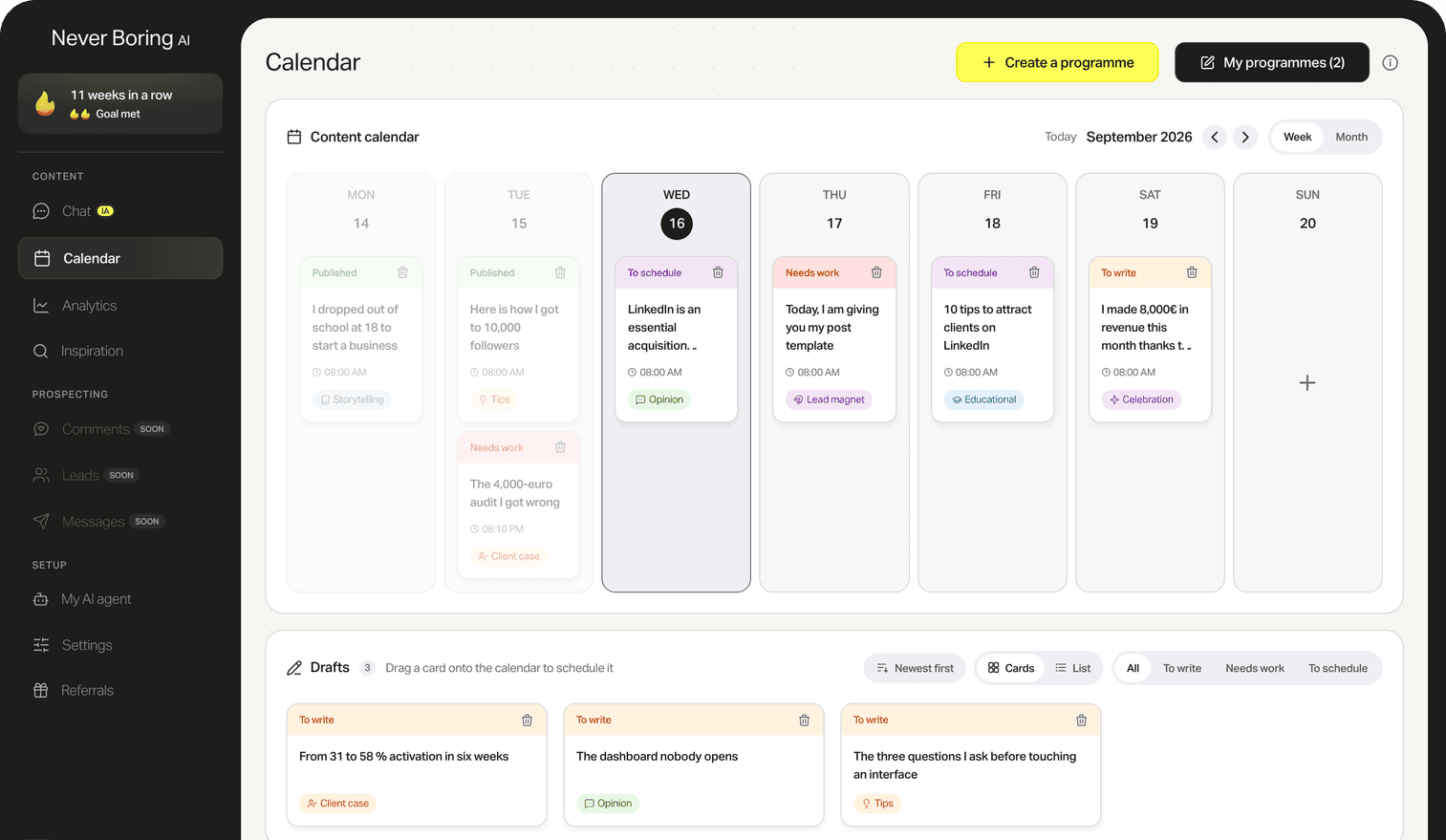
Never Boring AI is an AI agent for LinkedIn that connects your account through a dedicated connection page and exposes an MCP server. From Claude, ChatGPT, Cursor or VS Code, you ask your AI to create a post, schedule it or publish it: it happens in your account, within the daily and weekly limits Never Boring AI applies to every action.
Before you start: MCP is included in both plans
The MCP server opens at first payment, with Starter as with Pack Pro. It gives access to 24 actions: posts, programmes, your agent's memory and publishing.
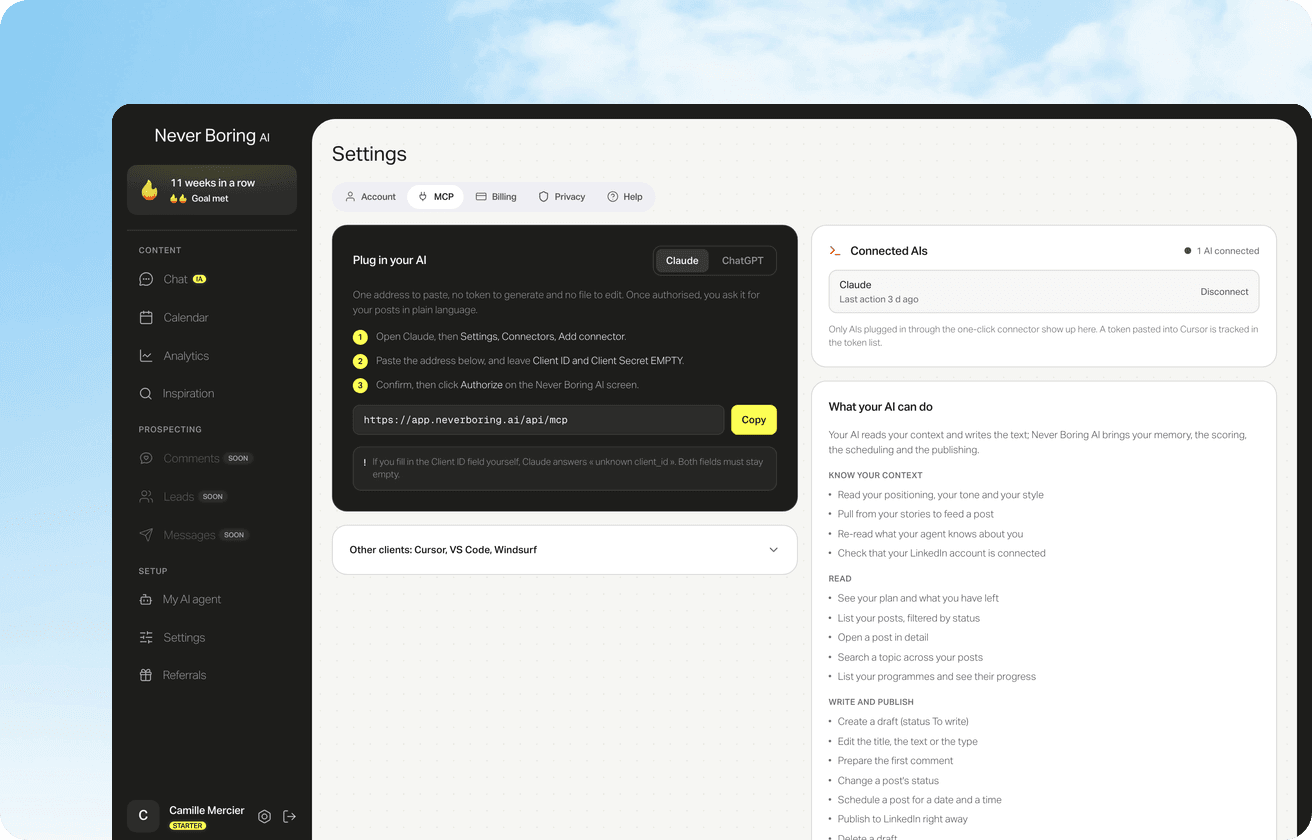
Connect Claude (verified steps)
1. Subscribe, then connect your LinkedIn account: Never Boring AI asks for it right after payment. The connection happens on a dedicated page, and your password never goes through Never Boring AI. 2. In Never Boring AI, open Settings, MCP tab, and copy the server address. It looks like https://app.neverboring.ai/api/mcp. 3. In Claude, open Settings, Connectors, Add connector. Paste the address and leave Client ID and Client Secret empty. 4. Confirm, then click Authorize on the Never Boring AI screen. You can now ask Claude: 'List my draft posts.'
If Claude asks for a token, you're in the wrong place
Claude and ChatGPT need no token to connect to Never Boring AI's MCP: the address is enough, and you authorise access on a consent screen. If you're asked for a token, you're in the wrong menu. The token (a config line to copy) is for code editors such as Cursor and VS Code.
Connect ChatGPT
The path differs from Claude's. In ChatGPT, open Settings, search for Developer mode and turn it on: ChatGPT presents it as high risk and asks you to tick a warning, which is expected. Then go to Settings, Plugins, Browse plugins, and click the + at the top right. Name it Never Boring AI, paste the server address into Server URL, and leave authentication on OAuth. Tick the warning, click Create, then Authorize on the Never Boring AI screen.
What you can ask once connected
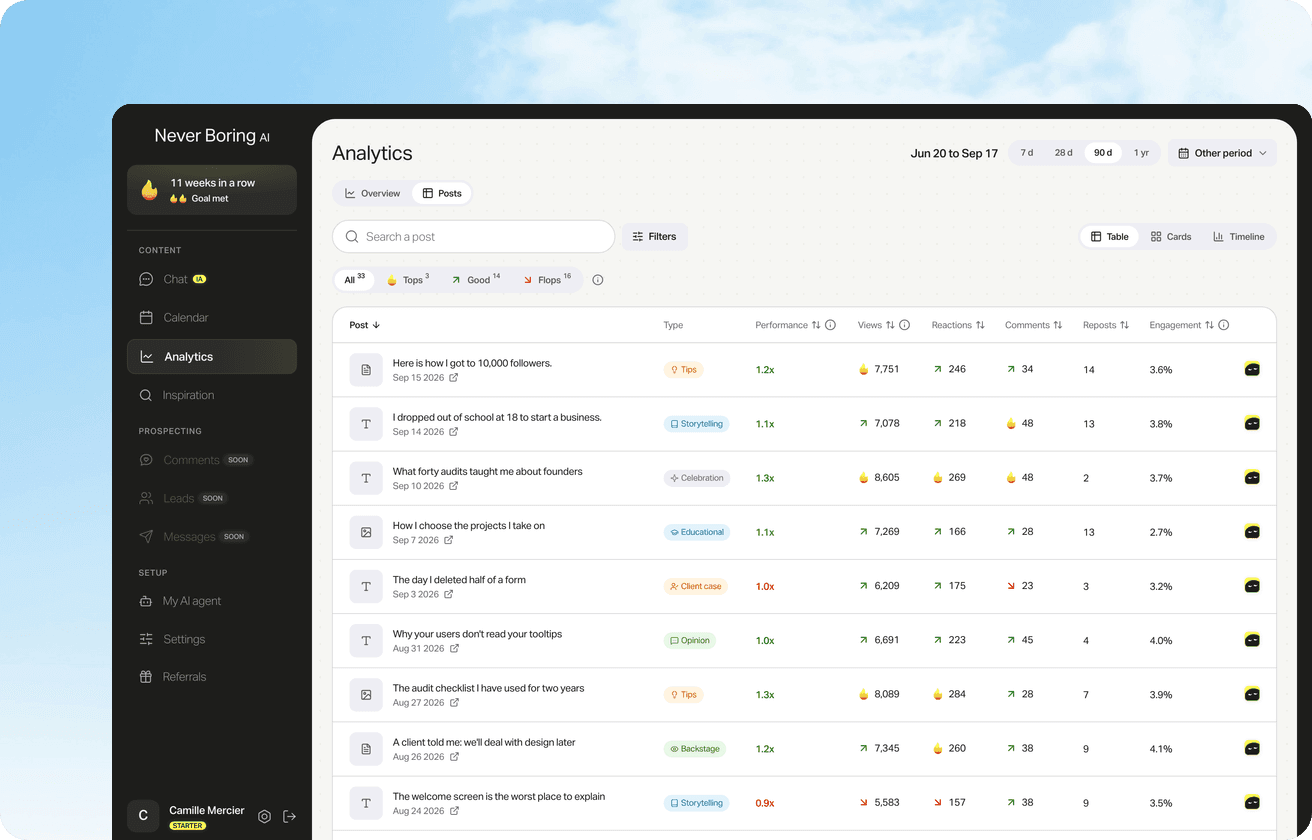
The MCP server exposes 24 actions. The most useful in a regular workflow: 'List my posts scheduled this week.' → your AI shows the calendar. 'Create a post about [topic], storytelling format, and schedule it Tuesday at 8am.' → the post joins your calendar, on that date. 'Prepare a four-week editorial programme, three posts a week, about [angle].' → the programme is saved in Never Boring AI, ready to activate. 'Publish the post [title] to LinkedIn and add this first comment: [text].' → the post goes out on your account, and the first comment right after. 'Keep this anecdote for a future post: [anecdote].' → it joins your agent's memory. Your AI writes the text, Never Boring AI provides the structure, scheduling and publishing. Creating or editing a post via MCP does not count against your generation quota.
What MCP doesn't do
An MCP server responds when you ask it something. It watches nothing, triggers nothing on its own, and runs nothing when the conversation is closed. If you want a post to go out automatically at a set time, that's Never Boring AI's auto-publishing feature that handles it (not MCP). MCP is the interface to control the tool from your AI, not the scheduling engine.
No. LinkedIn hasn't published one. The community projects on GitHub drive a browser session and are not affiliated with LinkedIn.
Read next
50% off your first month
Create your account and walk away with your first post in minutes. Your LinkedIn calendar then runs on its own.


Already used by
202 founders