LinkedIn analytics tools: 6 picks for creators in 2026
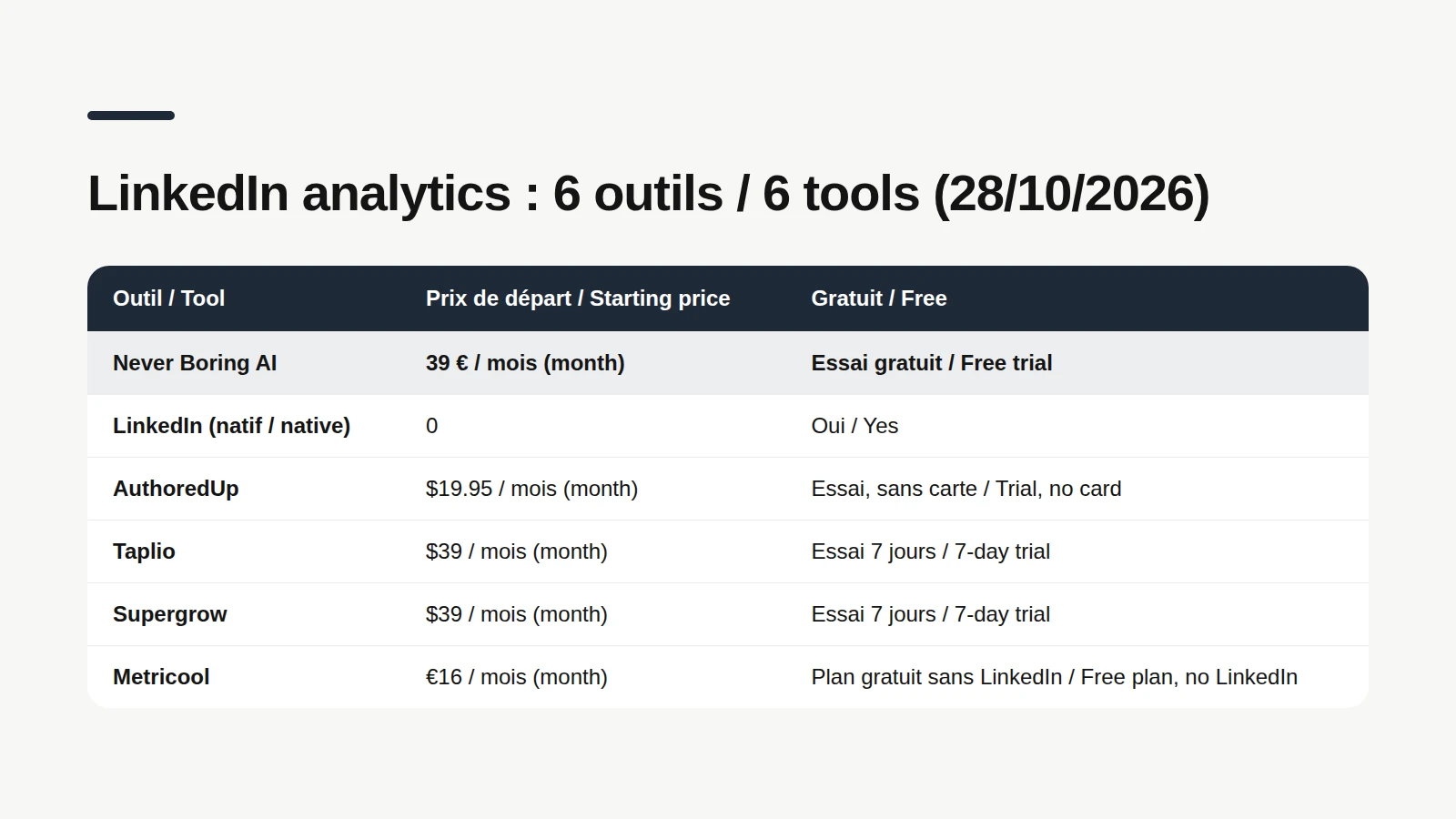
The simplest place to start with LinkedIn analytics tools is free: LinkedIn's own analytics, open to every member. Then add a tool if you want more. Never Boring AI keeps your numbers next to the posts it helps you write, while AuthoredUp, Taplio, Supergrow and Metricool cover editing, scheduling and multi-network reporting, from about $16 to $39 a month for a solo plan. Every price below was checked on the official site on October 28, 2026. If you post twice a week and stare at your view count like a weather forecast, wondering what it means, this list is for you.
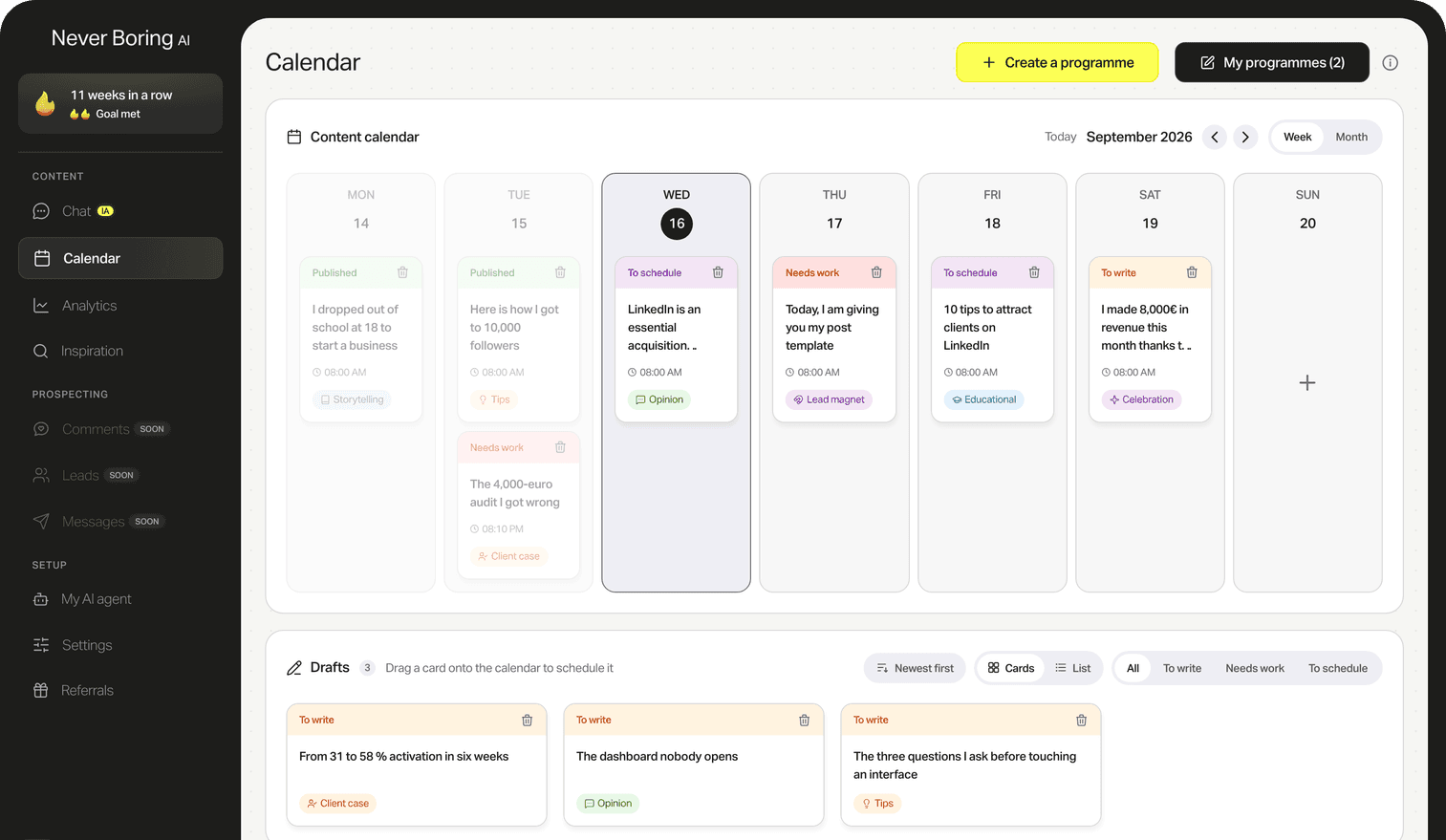
🧭 1. Never Boring AI: your stats next to the posts it writes
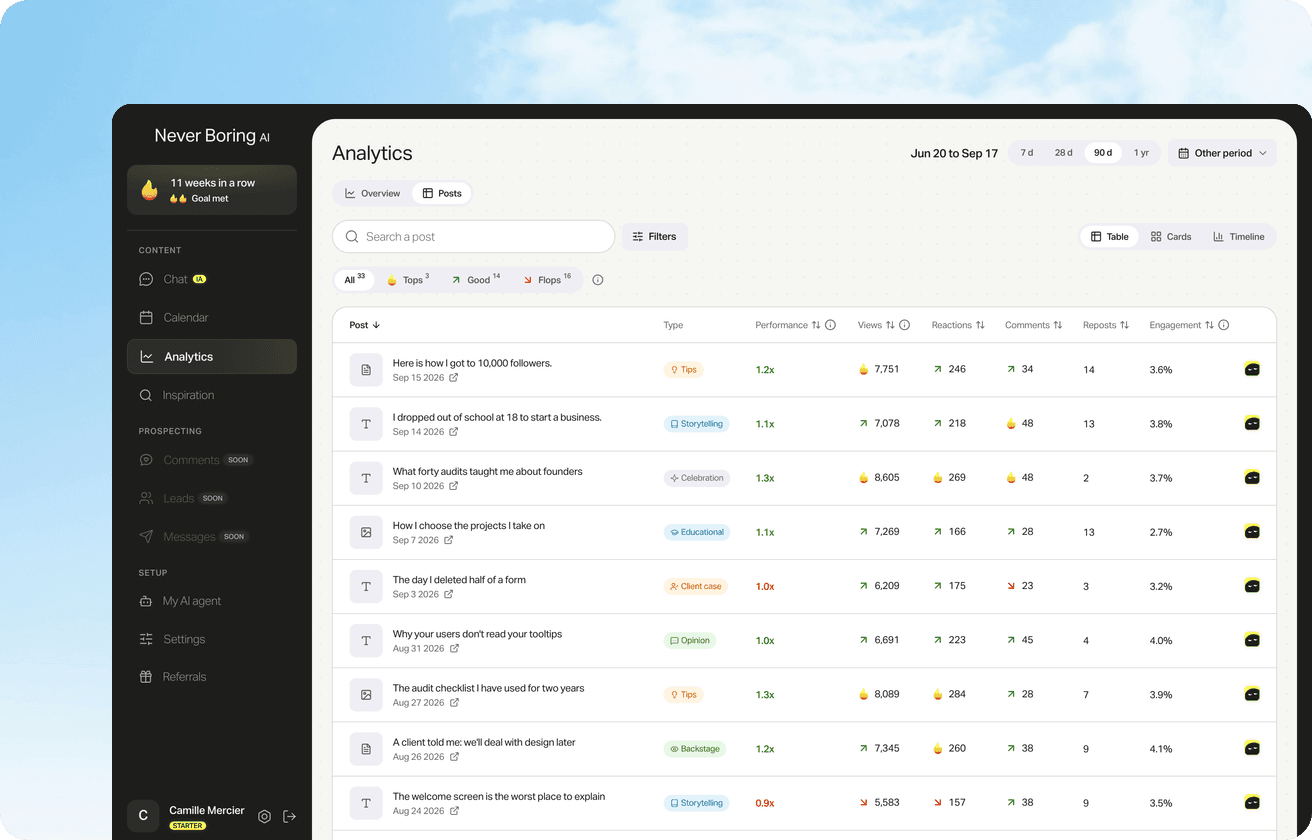
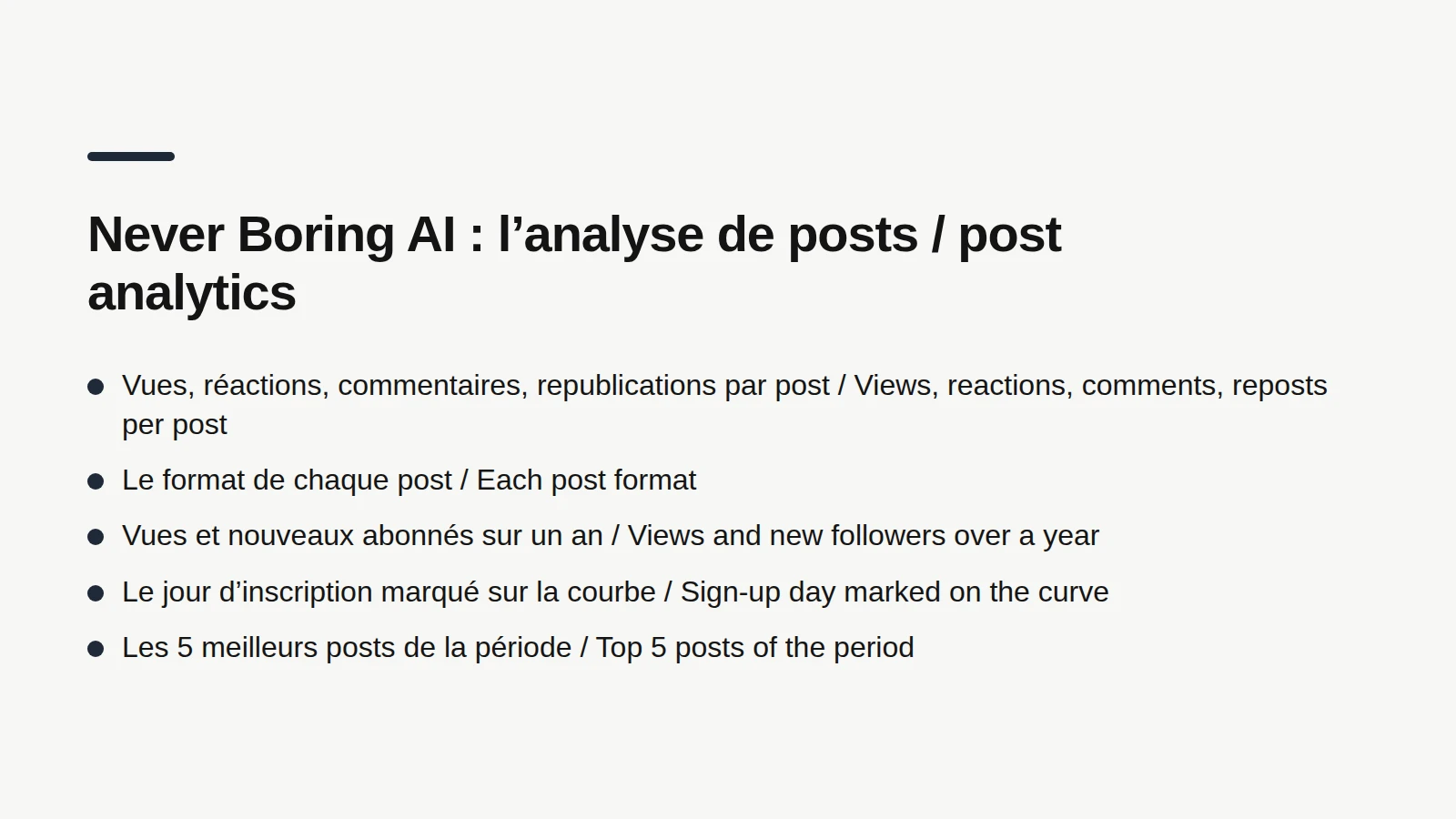
Never Boring AI is an AI agent that builds your LinkedIn posting plan, drafts the posts in your voice, publishes them, then shows you how they did. That last part, post analytics, is why it sits at the top of this list. According to the feature page, you connect your LinkedIn account once and the tool pulls your numbers: views, reactions, comments and reposts for every post, along with its format. A curve shows your views and new followers over a year, with your sign-up day marked on it. Your five best posts of the period sit right next to it, and the period you pick is compared with the previous one. Posts written with the tool carry its icon, so you can see at a glance how your posts did before and after. Who it's for: freelancers, consultants and solo founders who want to write, publish and review their numbers in one place, without opening a spreadsheet. Price: €39 a month, no commitment, with a free trial. What it isn't: a dashboard for running a company Page or twenty client accounts. For that, keep reading.
Your LinkedIn numbers, finally readable
Views, new followers and engagement, post by post, with the day you started marked on the curve. The numbers come from your LinkedIn account, connected once.
📊 2. LinkedIn native analytics: free for every member
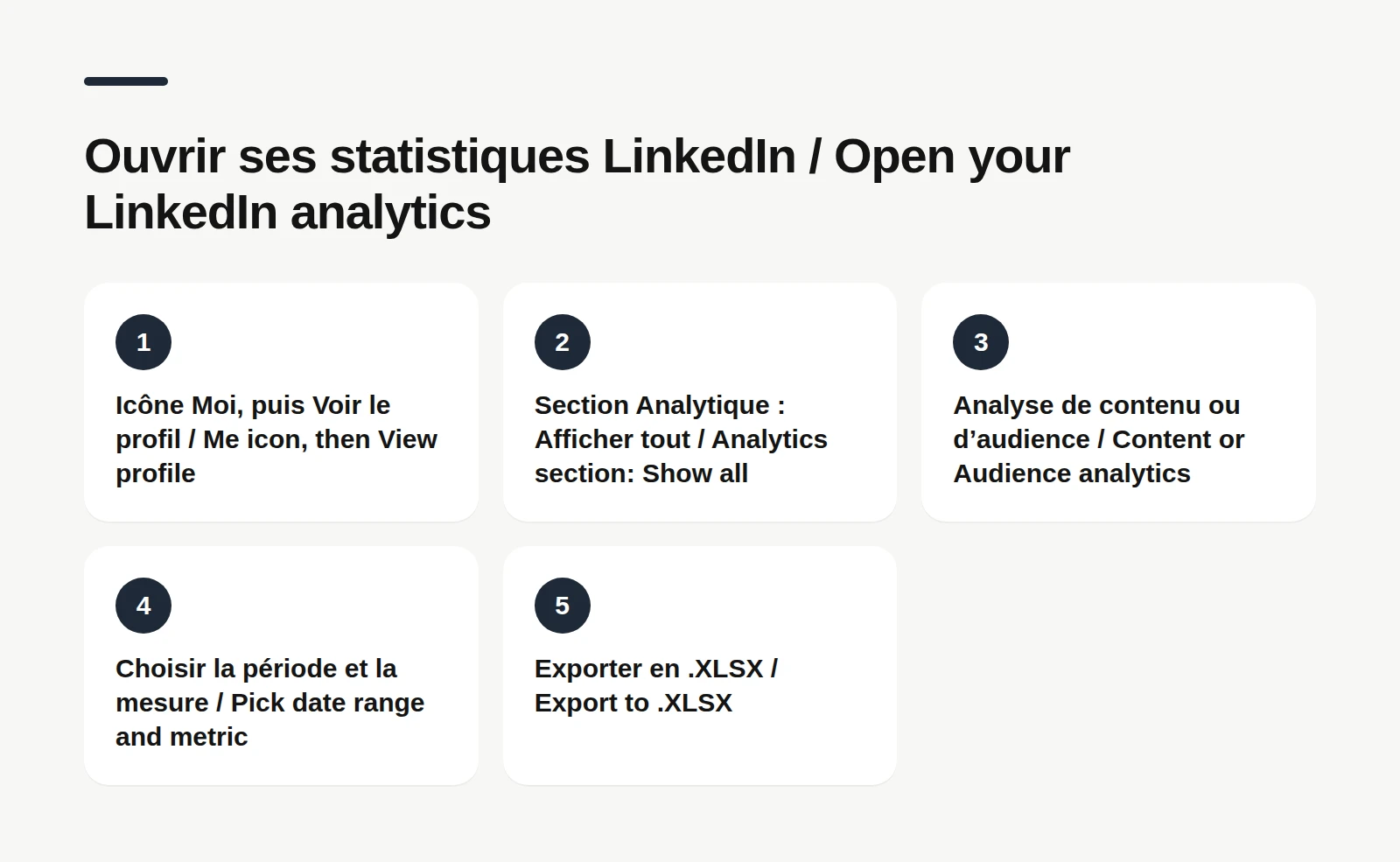
LinkedIn native analytics is the set of dashboards LinkedIn gives every member, with no subscription. The help center calls it creator analytics: content analytics (how your posts perform over time) and audience analytics (your followers). To open it on desktop, according to LinkedIn's help center: 1. Click the Me icon at the top of your LinkedIn homepage. 2. Click View Profile. 3. Scroll down to the Analytics section and click Show all. 4. Pick Content analytics or Audience analytics in the left pane. On mobile, tap your profile photo twice, then Show all in the Analytics section. At the top of content analytics you get two dropdowns: the date range (7 to 365 days) and the metric (impressions or engagements). The Export button downloads everything as an .XLSX file, handy for keeping a history. For a single post, go to Posts & Activity and click the impressions count under the post, or View analytics. A table of your most recent posts, exportable to CSV, is also rolling out gradually, on desktop only.
What each number means, using LinkedIn's own definitions: Impressions: the number of times your post was displayed on screen. LinkedIn notes it's an estimate. Members reached: the number of distinct members and Pages who saw the post. Someone who sees it three times counts once. In network and out of network: the share of impressions from your connections and followers, and the share from everyone else. Engagements: reactions, comments, saves, sends and reposts, minus any that were removed. That's why a day can show a negative number on the graph: no need to panic, someone just took back their like. Profile activity: profile views and followers gained from the post. Demographics: job title, location, company, company size, industry and seniority of the people who saw the post. Three details change how you read all this. Your own views and reactions count toward your numbers. The percentage change compares the date range you picked with the previous one. And the numbers don't last forever: a post's impressions and engagements stay available for 1,000 days, members reached for 400 days, demographics for 180 days. Export before they fade. On the profile side, the Analytics section also shows your search appearances and who viewed your profile: without a subscription, your three most recent viewers over 90 days; with Premium, the full list over 365 days. A company Page has its own analytics too, with an engagement rate LinkedIn calculates for you: interactions (clicks, reactions, comments, shares) divided by impressions. The limit of native analytics is mostly practical: the numbers are there, but sorted post by post and period by period, and some of them expire. The other tools on this list keep them, organize them or connect them to how you write.
3. AuthoredUp: a Chrome extension with content analytics
AuthoredUp is a Chrome extension and platform for writing, formatting and tracking LinkedIn posts. On its pricing page, checked October 28, 2026, the Individual plan costs $19.95 a month ($16.63 billed yearly). It includes the editor with preview, 300+ hooks and post endings, and content analytics. The Business plan, from 3 profiles, adds team analytics at $14.95 per profile per month. The trial is free, no credit card required. AuthoredUp suits creators who write their own posts and want their editor and their numbers in one place, right in the browser.
4. Taplio: scheduling plus core analytics
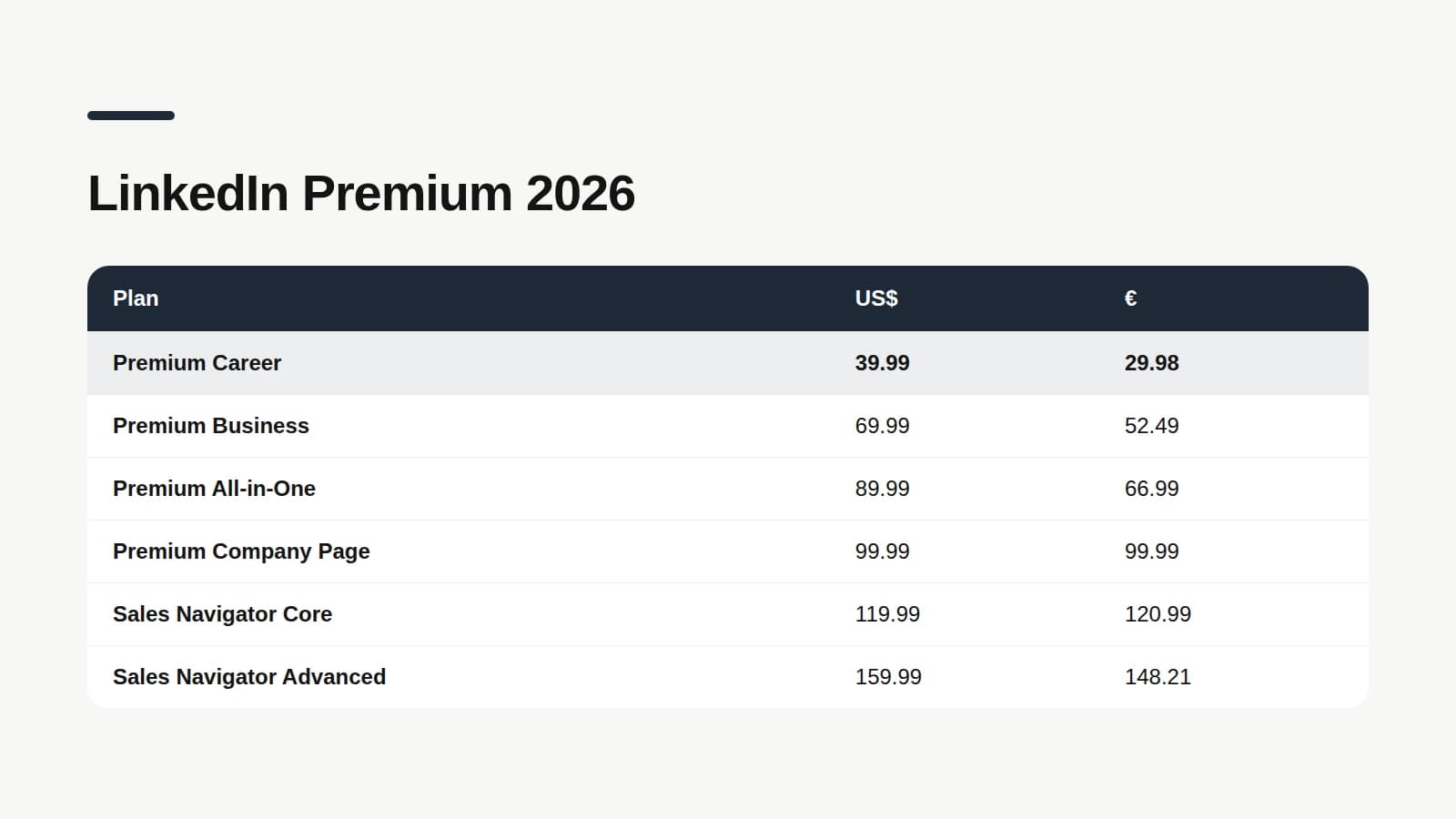
Taplio is a suite of LinkedIn tools: scheduling, inspiration, AI writing, analytics and lead outreach. On its pricing page, checked October 28, 2026, the Starter plan at $39 a month covers post scheduling and tracking core metrics. Growth, at $69, adds AI writing and faster replies to comments; Pro, at $199, adds lead outreach automation. Every plan starts with a 7-day free trial. Taplio suits people who want one broad tool, from scheduling to outreach, and teams that want shared analytics across several accounts.
5. Supergrow: profile analytics and a weekly report
Supergrow is a LinkedIn content tool that covers writing through scheduling. Its pricing page, checked October 28, 2026, lists profile analytics and a weekly report in the Pro plan at $39 a month ($31 billed yearly), along with scheduling and a calendar view. The Teams plan, at $199 a month for 5 accounts, adds team-wide analytics and reporting. 7-day free trial. Supergrow suits executives and marketing teams who want to track several voices from the same company.
6. Metricool: LinkedIn alongside your other networks
Metricool is a planning and analytics tool for several social networks. One catch: according to its pricing page on October 28, 2026, the free plan covers every network except LinkedIn and X (Twitter). The LinkedIn connection starts with the Starter plan, from $20 a month (€16 in euros), which also includes unlimited analytics history and PDF reports. Metricool suits people who post on LinkedIn and elsewhere (Instagram, TikTok, YouTube) and want one dashboard for everything.
📏 How to read your LinkedIn numbers (and what's typical)
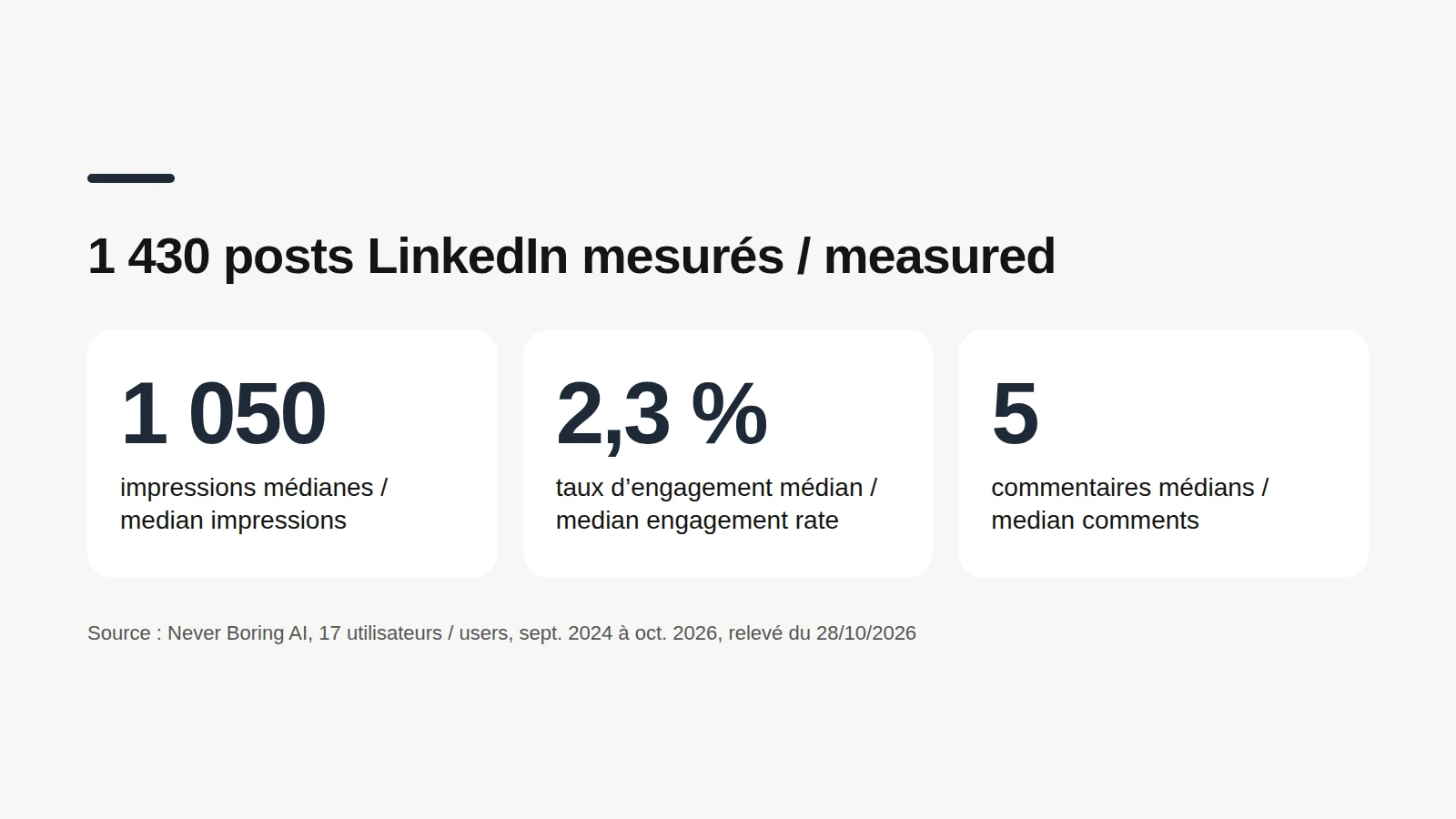
Reading your LinkedIn analytics means turning numbers into decisions about what you'll write next week. To compare your posts with each other, the handiest number is the engagement rate. The most common formula: add up a post's reactions, comments and reposts, divide by its impressions, multiply by 100. A post seen 1,500 times with 30 reactions, 6 comments and 2 reposts comes out at (30 + 6 + 2) / 1,500 × 100, or about 2.5%. Always keep the same formula: switching from one month to the next makes every comparison shaky. So what's a "normal" number? Nobody can answer for your account, but here's a reference point. Pulled from Never Boring AI's database on October 28, 2026: 1,430 LinkedIn posts from 17 users who connected their account, published between September 2024 and October 2026, team and test accounts excluded, reposts excluded. Half of these posts got between about 560 and 2,300 impressions, with a median around 1,050. Their median engagement rate, using the formula above, is 2.3%, and the middle half sits between 1.5% and 3.4%. The median post got 5 comments. These numbers describe those 17 accounts, most of them French-speaking (14 of 17), so read them as a European reference rather than a US benchmark. They don't say what works or what your account is worth, and with so few accounts, one very active account can weigh a lot. Use them as an order of magnitude, then compare yourself mostly with yourself.
Three habits prevent most bad conclusions. Compare periods, not single posts: a holiday or an unexpected repost is enough to make a post soar or sink. Compare posts of the same format: a carousel and a text post don't ask the same effort from the reader. Tie one number to your goal: followers gained if you want to get known, comments if you want conversations, profile views if you want clients. And write down the day you change something (cadence, format, tool). Three months later, that little note will explain the bend in the curve.
Compare your posts format by format
Text only, image, carousel, video: our LinkedIn post format guide describes what gets published, with its data base, and how to read your own numbers by format.

Calculate your LinkedIn engagement rate
Free tool, no email needed: enter a post's numbers and it works out the engagement rate for you.
How to choose a LinkedIn analytics tool
Choosing a LinkedIn analytics tool mostly comes down to what you want to do with your numbers. Four cases come up again and again. You post now and then and just want to understand: native analytics is enough, and the .XLSX export keeps your history. You want to write, publish and review your numbers in one place without giving up your evenings: Never Boring AI, which keeps each post next to its results. You write your own posts and want an editor with analytics: AuthoredUp. You manage several accounts or a team: the team plans from Supergrow, Taplio or AuthoredUp. And if you also post on other networks: Metricool. Either way, test before you pay: every tool on this list offers a trial or a free plan. One week is enough to tell whether you actually open the dashboard, or whether it joins the pile of forgotten browser tabs.
Great analytics need posts to measure
Never Boring AI's LinkedIn post generator starts from your offer, your audience and your own stories, and drafts in your voice. You edit, it publishes.
Bottom line: the LinkedIn analytics tool to start with
Start with LinkedIn's native analytics: it's free, it's in the Analytics section of your profile, and it exports to .XLSX. Remember three definitions: impressions count displays, members reached counts distinct people, engagements count reactions, comments, saves, sends and reposts. Calculate your engagement rate post by post with the same formula every time, and compare periods rather than single posts. If you want your numbers to shape the posts you write next, Never Boring AI keeps them next to your posting plan. AuthoredUp, Taplio, Supergrow and Metricool are solid options for editing, teams or multi-network reporting. The free trial is the quickest way to see your own curves.
Write, publish, measure: one agent
Tell the agent about your business: it builds your plan, drafts your posts in your voice, publishes them on LinkedIn and shows you their numbers. Free trial.
What questions come up most often?
The questions that keep coming up on this topic, and how we answer them.
Start with LinkedIn's native analytics, free for every member. If you also want help writing, Never Boring AI keeps each post's views, reactions and comments next to the posts it drafts, for €39 a month with a free trial. AuthoredUp, at $19.95 a month, suits creators who write their own posts; Taplio and Supergrow start at $39 a month. Prices checked October 28, 2026.
Read next
Your first 5 posts are on us
Create your account, no credit card needed, and walk away with your first post in minutes. Your LinkedIn calendar then runs on its own.


Already used by
238 founders