Schedule LinkedIn posts for free on desktop and mobile
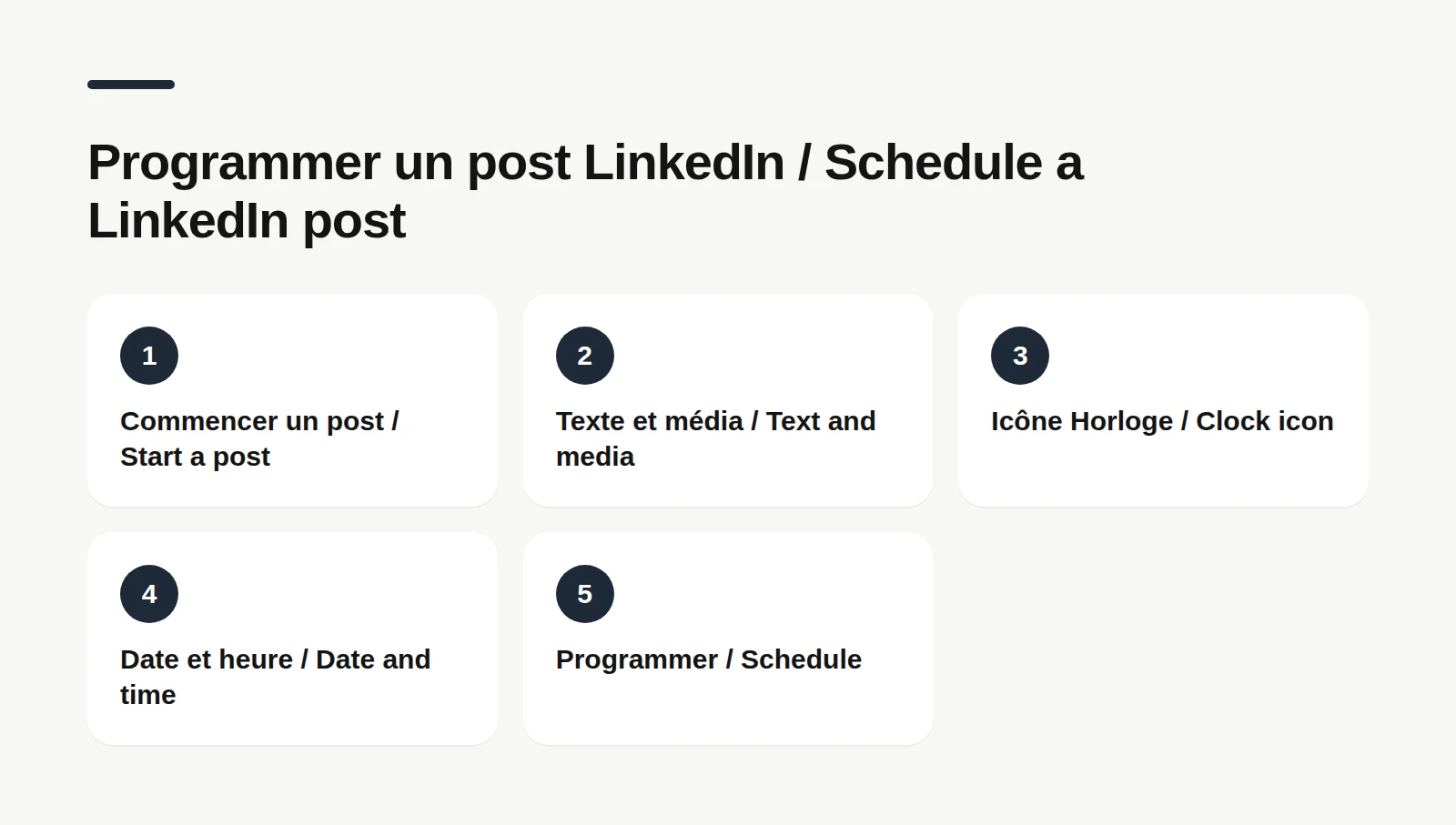
To schedule a LinkedIn post, click Start a post, write your text, then click the Clock icon in the lower-right corner. Pick a date and time, click Next, then Schedule. It is free, built into LinkedIn, and works anywhere from 10 minutes to 3 months ahead, on desktop and on mobile. Every step below comes from LinkedIn's official help center, checked on October 24, 2026. If you are a freelancer, consultant or solo founder who writes posts on Sunday night and would rather not be glued to LinkedIn on Tuesday morning, good news: your posts can go out without you.
💻 How to schedule a LinkedIn post on desktop
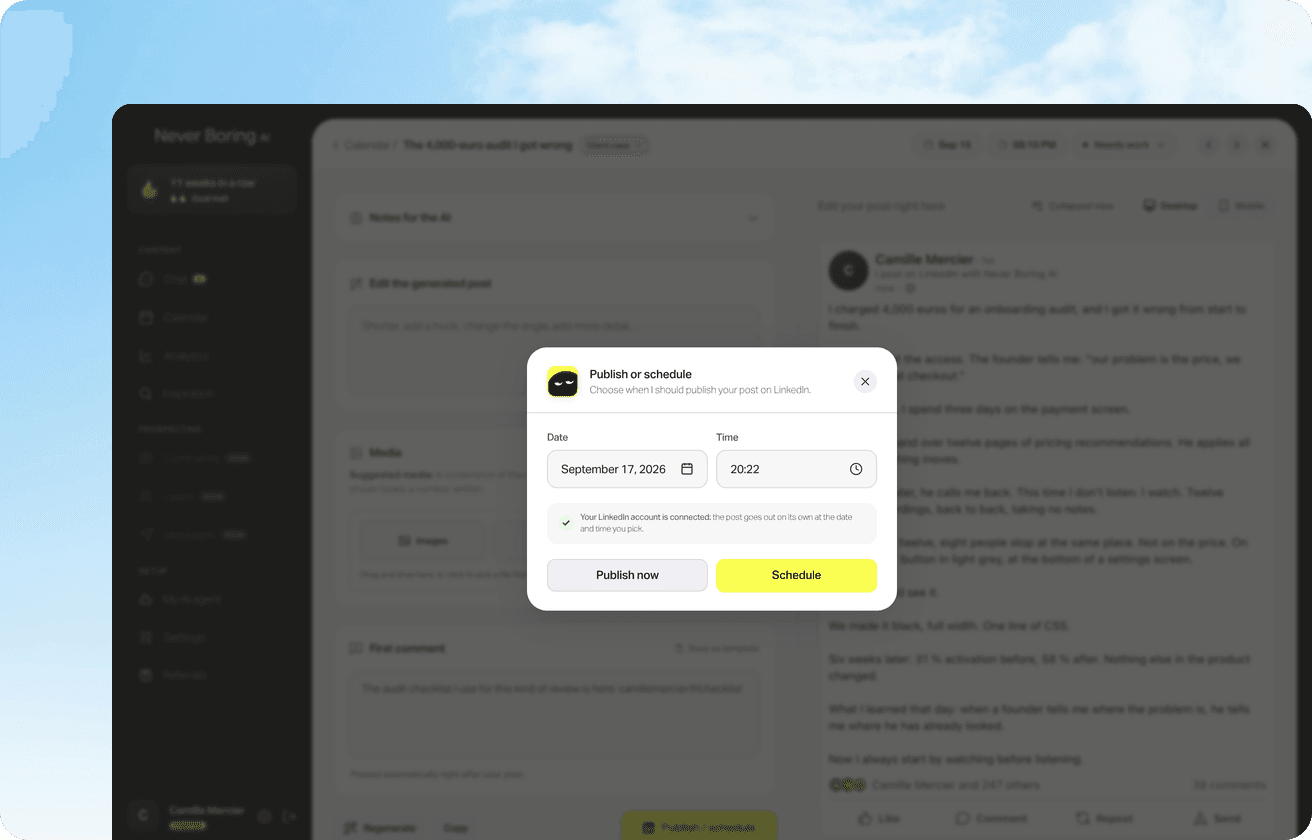
Scheduling a LinkedIn post means preparing it now and choosing the date and time LinkedIn will publish it, without you having to come back. On desktop, everything happens inside the post composer. The steps, according to LinkedIn's official help center: 1. Click Start a post at the top of your LinkedIn homepage. The Create a post window opens. 2. Type your text in the What do you want to talk about? field and add your image, video or document. 3. Click the Clock icon in the lower-right corner. 4. In the Schedule post window, select the date and time you want the post to go live. 5. Click Next: the scheduled date and time now show above the post. 6. Click Schedule. A confirmation pops up in the lower left of the page. Three details from LinkedIn's help center worth knowing. You can schedule anywhere from 10 minutes to 3 months from now. You can type an exact time (9:07 AM, if you like to stand out) instead of picking one of the 30-minute slots in the dropdown. And scheduled times are converted to UTC based on your device's time zone settings, which matters if you write from Denver for an audience in New York: check your laptop's clock before you hit Schedule. Changed your mind before confirming? Click Edit next to the time shown above the post, then Clear time. The post goes back to a regular draft you can publish right away.
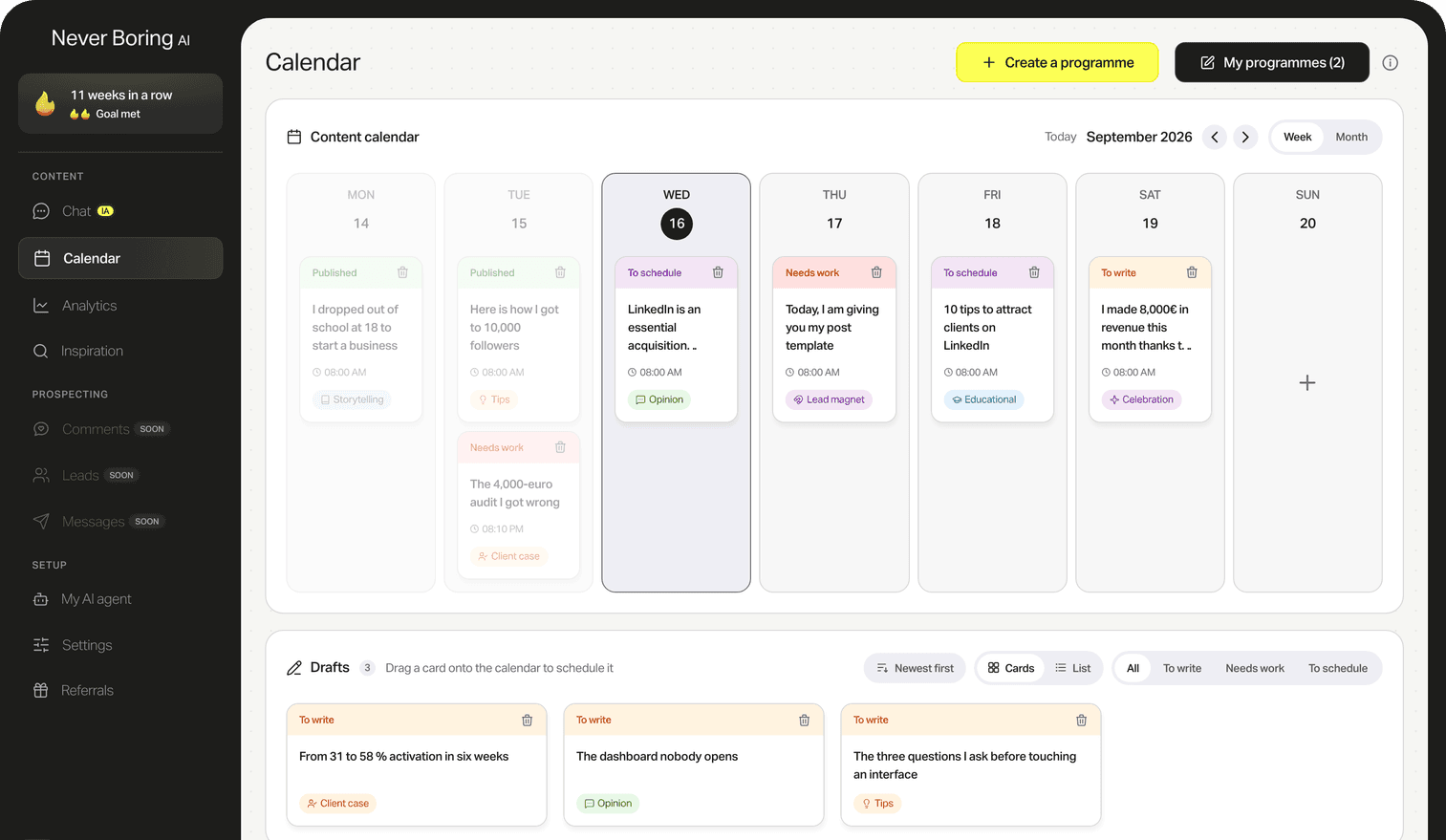
Let your posts go out on their own
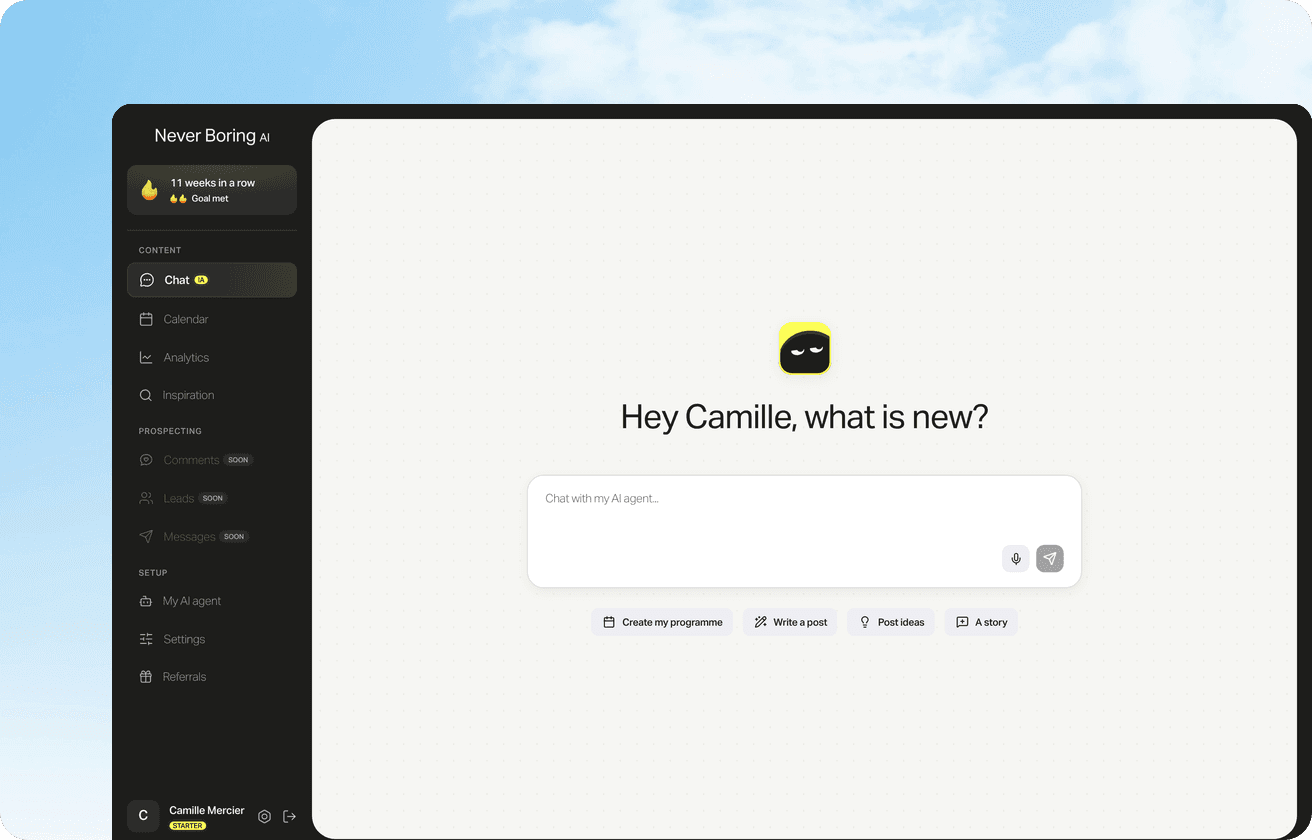
Never Boring AI publishes your LinkedIn posts automatically at the date and time you picked, through LinkedIn's official API, with the first comment posted right after. You connect your account once.
📱 How to schedule LinkedIn posts on mobile (iPhone and Android)
Scheduling a LinkedIn post on mobile is the same feature, from the LinkedIn app on iPhone or Android. The labels change a little, the logic doesn't: a clock, a date, a time. The steps, according to LinkedIn's help center: 1. Tap Post in the navigation bar. The Share post window opens. 2. Type your text in the Share your thoughts... field and add your media. 3. Tap the Clock icon in the upper-right corner. 4. In the Schedule window, select the date and time. 5. Tap Next and check the date shown above the post. 6. Tap Schedule. The desktop rules apply here too: 10 minutes to 3 months ahead, an exact time if you want one, and a conversion to UTC based on your phone's time zone. If you are traveling, that last one is the sneaky part. To drop the schedule before confirming, tap Edit next to the time, then Clear. A small survival tip: on a phone screen, read the whole post one last time before you tap Schedule. Spotting a typo at 9:01 on a post that went live at 9:00 is a rite of passage nobody needs.
How to find scheduled posts on LinkedIn
The Scheduled posts page is where LinkedIn keeps every post you have scheduled that hasn't gone out yet. It does not live on your profile, which is why so many people go looking for it. On desktop: click Start a post, as if you were writing a new one. If posts are waiting in the queue, a badge with their number shows next to the Clock icon. Click the Clock, then View all scheduled posts in the lower-left corner. The Scheduled posts page opens with a preview of each one. On mobile: tap Post, then the Clock icon, then View all. Yes, it is counterintuitive: to find a post you already wrote, you pretend to write a new one. Once you know the trick, it takes ten seconds.
How to edit, reschedule or delete a scheduled LinkedIn post
Editing a scheduled post means changing its text or its publish time, or canceling it, as long as it hasn't gone out. LinkedIn's help center lets you do all of that from the Scheduled posts page. To change the text or the time: open your scheduled posts, click the More icon (the three dots) in the upper right of the post, then choose Modify schedule for the time, or Edit post for the content. To delete it: click the Delete icon next to the post, then confirm in the Delete scheduled post? window. To just look at it: click it and the preview opens. A habit worth building: skim your scheduled posts the day before. News breaks, a client changes their mind, a number gets outdated, and the post you wrote three weeks ago can suddenly sound off. Rescheduling takes less time than apologizing in the comments.
Scheduling posts on a LinkedIn company Page
Scheduling for a LinkedIn Page is the same feature, used on behalf of a company Page instead of your personal profile. The rules shift a little, according to LinkedIn's help article on Pages. Who can do it: a super admin or a content admin of the Page. When: from one hour to three months ahead (versus 10 minutes on a personal profile). What: a post or a newsletter article. Events, multi-photo posts, reshares, polls, jobs and service posts can't be scheduled for a Page. Once a Page post is scheduled, you can post it now, edit it, modify the schedule or delete it. Admins can also view and manage posts scheduled by other admins. And if an admin is removed from the Page, their scheduled posts are transferred automatically to the admin who removed them, so nobody loses the work of the intern who left on Friday. One last note for anyone running ads: a scheduled post can't be promoted through Browse existing content in Campaign Manager until it is published on the Page.
Why can't I schedule posts on LinkedIn?
A post that won't schedule is, most of the time, a post that falls outside the native feature's rules. Before blaming your Wi-Fi, run through the list. The post type isn't supported: on a personal profile, LinkedIn's help center rules out events and jobs. You are posting for a Page: polls, reshares and multi-photo posts join the list of exclusions. The time is too close: under 10 minutes for a profile, under one hour for a Page. The date is too far: more than 3 months out. And what the native feature doesn't promise: LinkedIn's help center describes scheduling one post at a time, from each post's composer. It says nothing about bulk scheduling, recurring posts or a content plan. For three posts a week, that's manageable. For a whole month, that is where a scheduling tool earns its keep.
From a LinkedIn content calendar to scheduled posts
Scheduling is the easy part. Knowing what to schedule for a whole month is harder. Never Boring AI builds your LinkedIn content calendar from your offer, your audience and your real experience, then drafts each post in your voice.
⏰ When to schedule your LinkedIn posts
The right time to schedule a LinkedIn post is the slot when your audience is online and you are around to reply to the first comments. People forget the second part, and it matters: a post that goes live while you are stuck in a meeting sits unanswered for hours. For a concrete reference point, we looked at what Never Boring AI users actually do. Pulled from the tool's database on October 24, 2026: 295 posts published to LinkedIn through its auto-publishing, by 29 users, between June 15 and October 23, 2026, team and test accounts excluded. More than 9 in 10 went out on a weekday, and more than 8 in 10 between 7 and 11 AM Paris time. The 9 to 10 AM slot alone accounts for 115 of them. Those numbers describe the times these users pick. Never Boring AI is built first for French-speaking solopreneurs, so read them as Paris-time habits. They don't say which time gets the most views, and they don't replace your own analytics. If your audience is in the US, translate the idea, not the hour: pick a weekday slot you can actually show up for, keep it for a few weeks, then compare.

Scheduling a month of posts with Never Boring AI
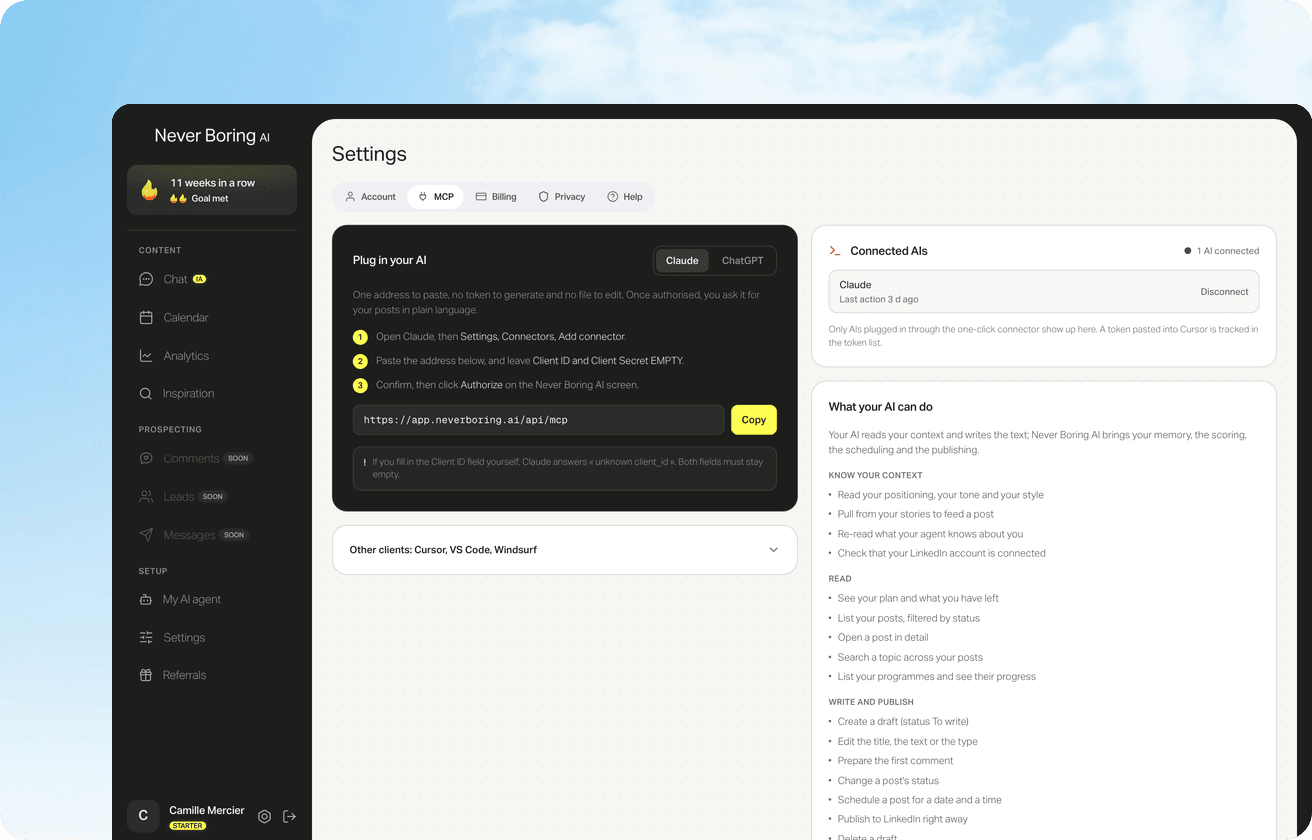
Scheduling with Never Boring AI means handing an AI agent the whole trip, from the post idea to its publication at the planned time. LinkedIn's native scheduler handles the last mile. For most solo founders and freelancers, the real problem is the mile before: what to say, in what order, and finding the time to write it. How it works: 1. The agent builds your posting plan from your offer, your audience and what you have actually lived. 2. It drafts each post in your voice. You fix whatever needs fixing. 3. You set your time slot once in your settings, and every post lines up with it. You can still change the time post by post. 4. The post goes out to LinkedIn at the planned date and time, with its first comment, and your whole month sits on a calendar where a drag and drop moves a post. One detail that matters: if a send fails (media rejected, authorization expired), the post stays marked Scheduled, with the reason written out, instead of being wrongly reported as published. You know, you fix it, it goes out on the next pass. Before you schedule anything, one last look at the preview never hurts: that is where you see what shows up before the ...more cut.
Preview your post before you schedule it
Free tool, no email needed: paste your post, add bold or italics, and see what the LinkedIn feed will show before the ...more cut, on desktop and mobile.
Bottom line: schedule LinkedIn posts and get your mornings back
Scheduling a LinkedIn post comes down to one move: the Clock icon in the post composer, on desktop and on mobile. It is free, and works from 10 minutes to 3 months ahead on a profile, from one hour to 3 months on a Page. You find your scheduled posts through that same Clock, then View all scheduled posts, where you can edit, reschedule or delete them. Pick a weekday slot you can show up for, and stick with it. And if the hard part for you isn't scheduling but knowing what to write every week, Never Boring AI builds the plan, drafts the posts in your voice and publishes them at your time.
Your posting plan, no blank page
Tell the agent about your business: it builds your plan, drafts your posts in your voice and schedules them on LinkedIn. Free trial, no credit card.
What questions come up most often?
The questions that keep coming up on this topic, and how we answer them.
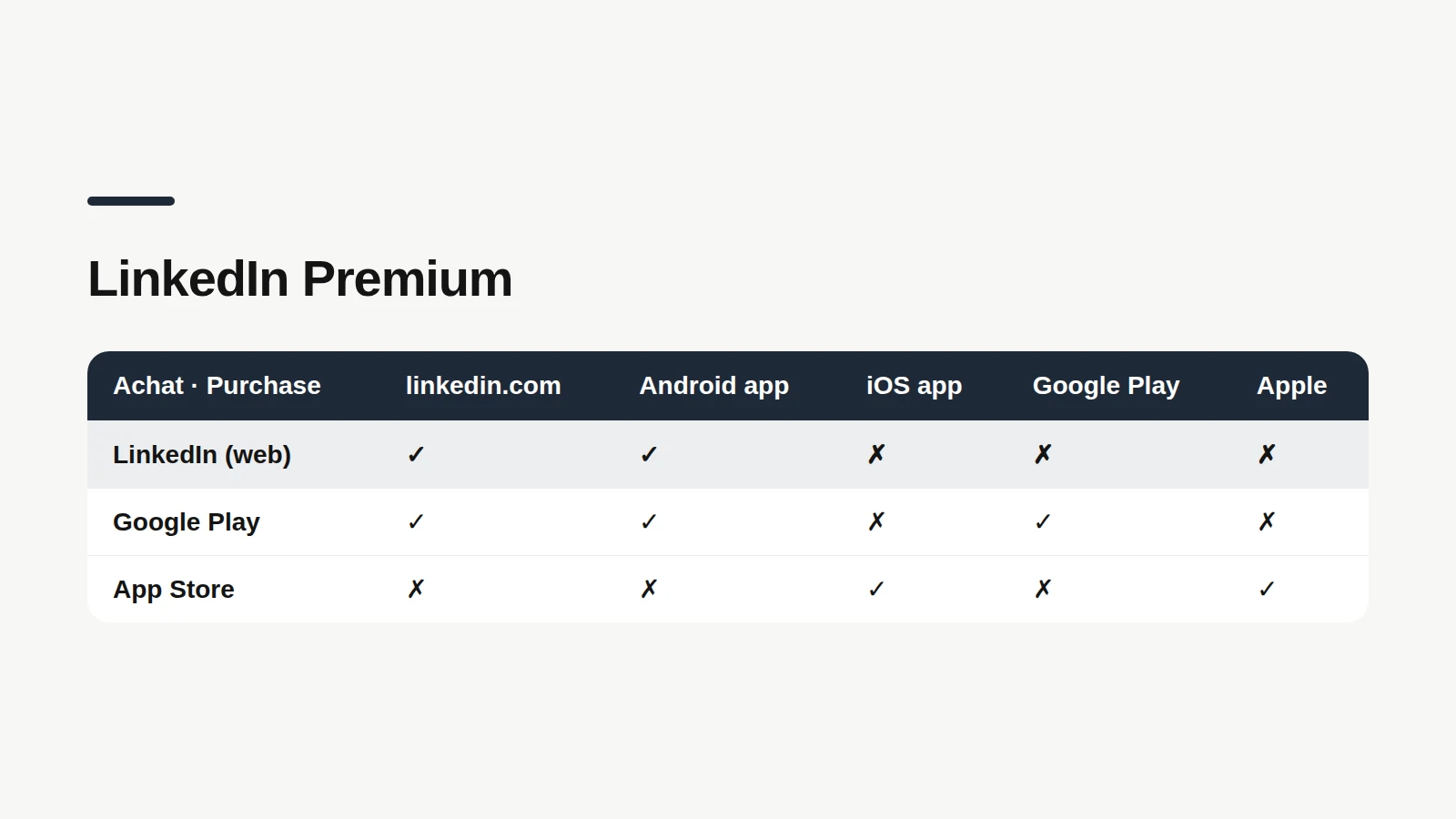
Yes. LinkedIn's native scheduler is built into the post composer. Click Start a post, write your text, click the Clock icon, pick a date and time, then click Next and Schedule. On mobile, tap Post, then the Clock icon in the upper right. The LinkedIn help article that describes the feature doesn't mention any Premium subscription.
Read next
Your first 5 posts are on us
Create your account, no credit card needed, and walk away with your first post in minutes. Your LinkedIn calendar then runs on its own.


Already used by
238 founders