LinkedIn emoji: copy-paste list and how many to use
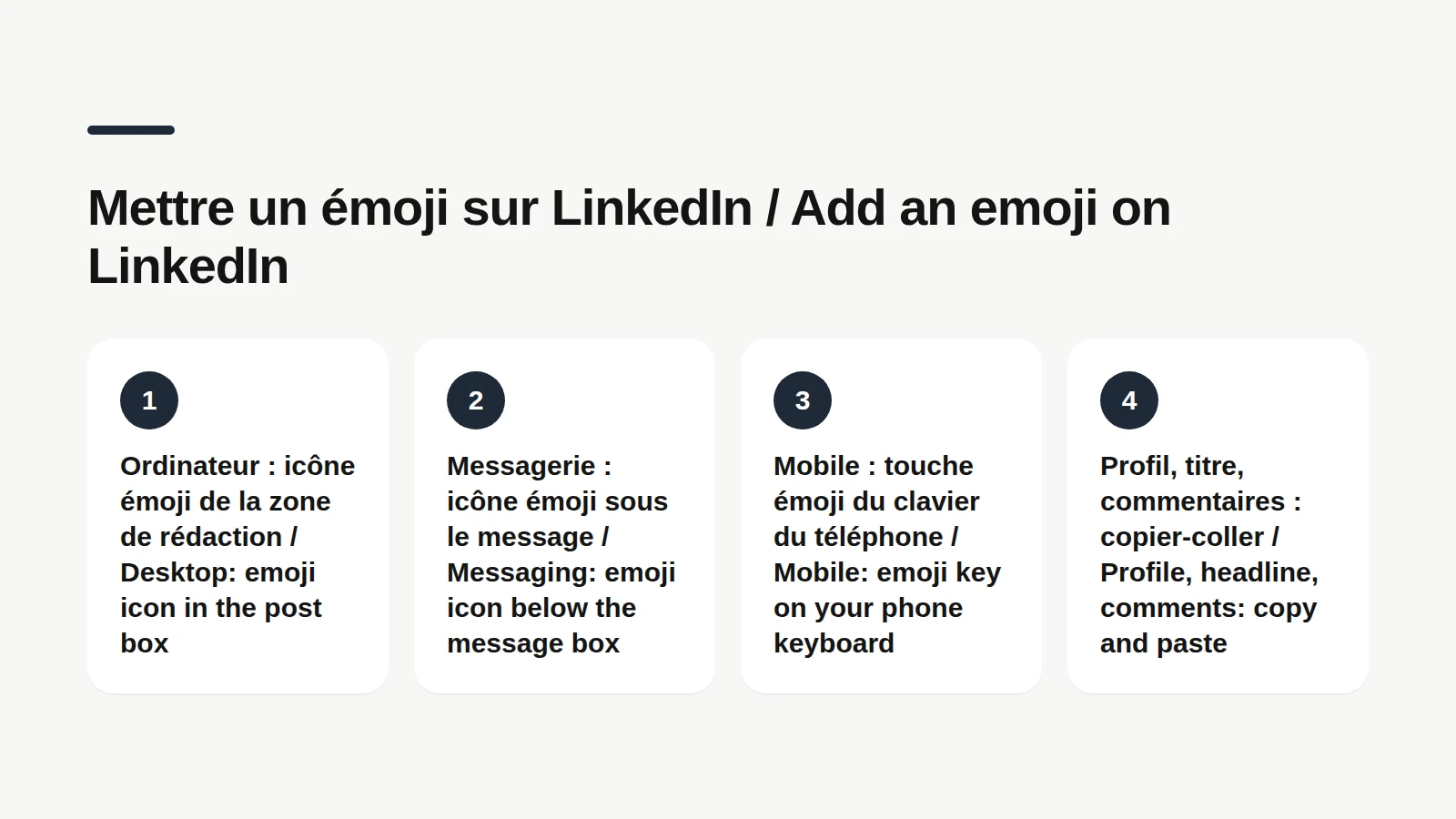
To add emojis on LinkedIn, click the emoji icon in the post box on desktop, or tap the emoji key on your phone keyboard. Anywhere else, copy and paste does the job. How many should you use? In 1,525 French-language LinkedIn posts from the Never Boring AI corpus, the median is a single emoji per post, and 42% have none at all. Between the Christmas-tree post 🎄 and the gray wall of text, there is plenty of room.
😀 LinkedIn emoji: what counts as one
A LinkedIn emoji is a standard pictogram, the same one you have on your phone, that you drop into a post, a comment, a message or your profile. LinkedIn doesn't draw its own: according to its help center, the emojis it offers were chosen for compatibility across devices and browsers, and how they look depends on each device's operating system. So your 😅 on an iPhone won't look exactly the same on a Windows laptop. Two cousins often get mixed up with them: Reactions: the icons under a post (Like, Celebrate, Support, Love, Insightful, Funny). You don't type them, you click them. Symbols: typographic arrows, bullets and checkmarks (→, •, ✓). Quieter than a full-color emoji, they read more like text. This guide is mostly about the first group, with a quick detour through the other two.
See your emojis the way the feed shows them
The free LinkedIn post preview tool shows where the "… more" cut falls on desktop and mobile, and bolds your words without touching your emojis. No account, no email.
How to get emojis on LinkedIn
Getting emojis on LinkedIn takes a different move depending on where you're writing. In a post, on desktop: click Start a post, then the emoji icon in the post box, according to LinkedIn's help center. In messaging: the emoji icon sits below the message box. LinkedIn's help center adds that you can pick a skin tone there, saved on that browser only. On mobile: tap the text field, then the emoji key on your phone keyboard, like in any other app. Everywhere else (headline, About section, comments): copy the emoji from the list below and paste it. On a computer, your system's emoji panel also works in any text field. On Windows 11, press the Windows key + period, according to Microsoft's support page. On a Mac, press Fn (or the globe key) + E, or choose Edit, then Emoji & Symbols, according to Apple's support page. Type "rocket" in the search box and the 🚀 is yours.
📋 LinkedIn emoji copy and paste list
A LinkedIn emoji list is a set of emojis sorted by purpose, ready to paste into a post. This one is organized by the job each emoji does in your text, because a well-placed emoji has a job: guide the eye, flag a link, set the mood. For lists and guiding the eye: 👉 ➡️ ✅ ❌ ✔️ 🔹 🔸 ▪️ 📌 1️⃣ 2️⃣ 3️⃣ For grabbing attention: 👇 👀 🔥 🚀 💡 ⚡ ⚠️ 🎯 📣 For emotion and conversation: 🙌 🙏 😂 😅 😉 🤔 ❤️ 👏 🎉 For work, numbers and links: 💼 📈 📊 🗓️ ✍️ 🤝 💬 🔗 🧠 Quiet symbols, for when a full-color emoji feels too loud: → • ✓ ★ ▸ | ◆ One habit before you hit Post: paste the text into a preview. Since emoji artwork depends on the device, a 1️⃣ or a ⚠️ can look different on your screen and on your readers' screens.
📊 How many emojis should you use in a LinkedIn post?
Emoji count per post is a writing habit, and the numbers show it varies a lot from one author to the next. LinkedIn sets no rule on it. Two Never Boring AI datasets do give you a concrete reference point, with one caveat up front: both are mostly French-speaking accounts, not a US benchmark. The Never Boring AI corpus holds 1,525 real, anonymized French-language LinkedIn posts written by 45 authors between March 20, 2025 and October 31, 2026. 42% of those posts contain no emoji at all. The median is one emoji per post, and the middle half of posts use between 0 and 3. The second dataset comes from Never Boring AI's database on November 5, 2026: 1,367 posts published on LinkedIn by 18 users who connected their account, between January 2025 and November 2026, team and test accounts excluded, reposts excluded. Same picture: 43% of posts with no emoji, a median of one, and 9 posts in 10 use 5 or fewer. Posts with 10 emojis or more make up about 2% of the total.
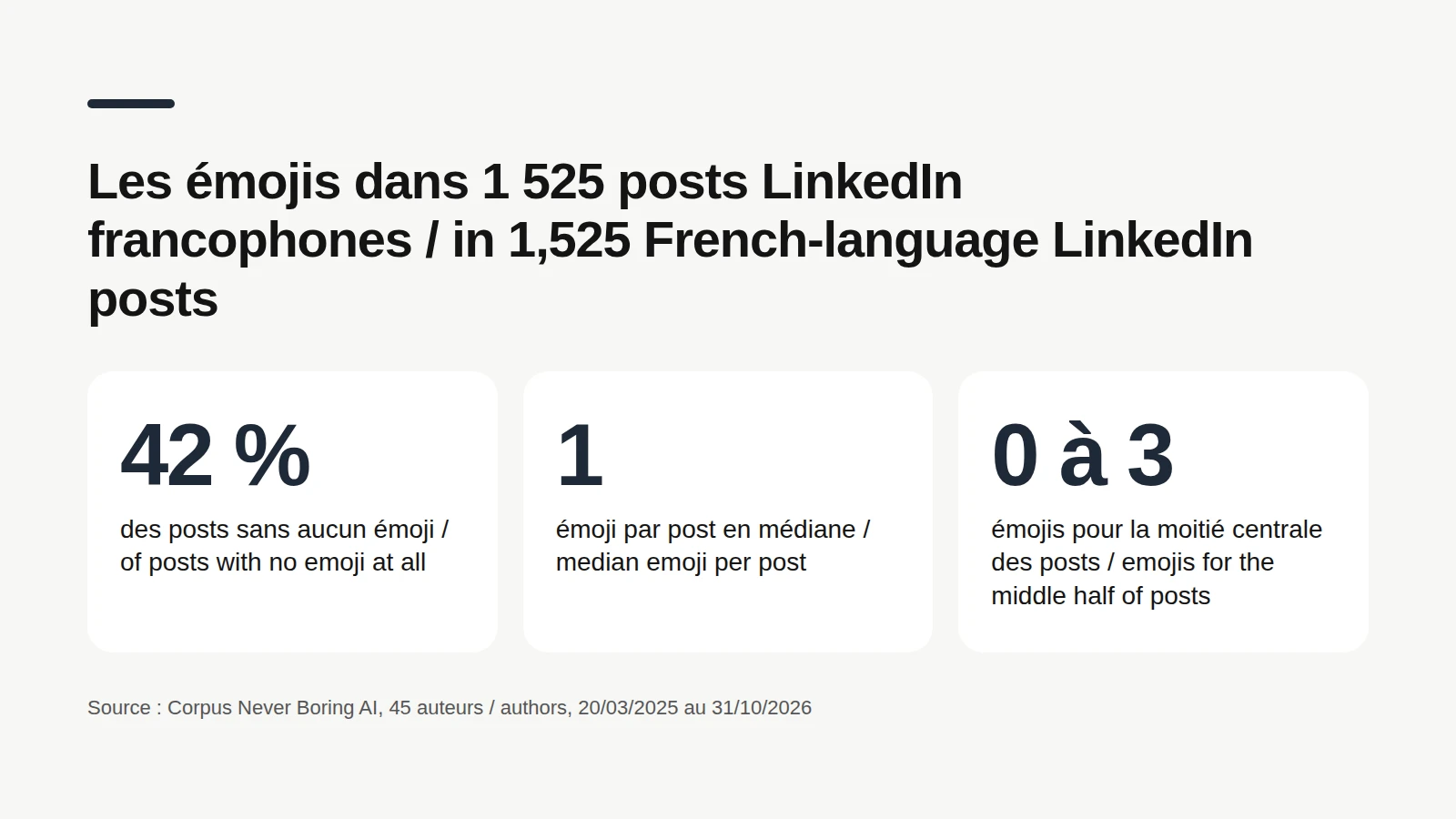
These numbers describe what these authors publish, and most of them write in French. They don't tell you how many emojis it takes to get views: none of these posts was tested with and without emojis. What they do show is that a post with no emoji is perfectly normal, and that past five, you're outside these authors' habits. So the right number is yours. If you naturally write with the odd 😅, keep it. If you never use them, nobody will hold it against you. The only real test: does each emoji have a reason to be there?
Your emoji habits, set once
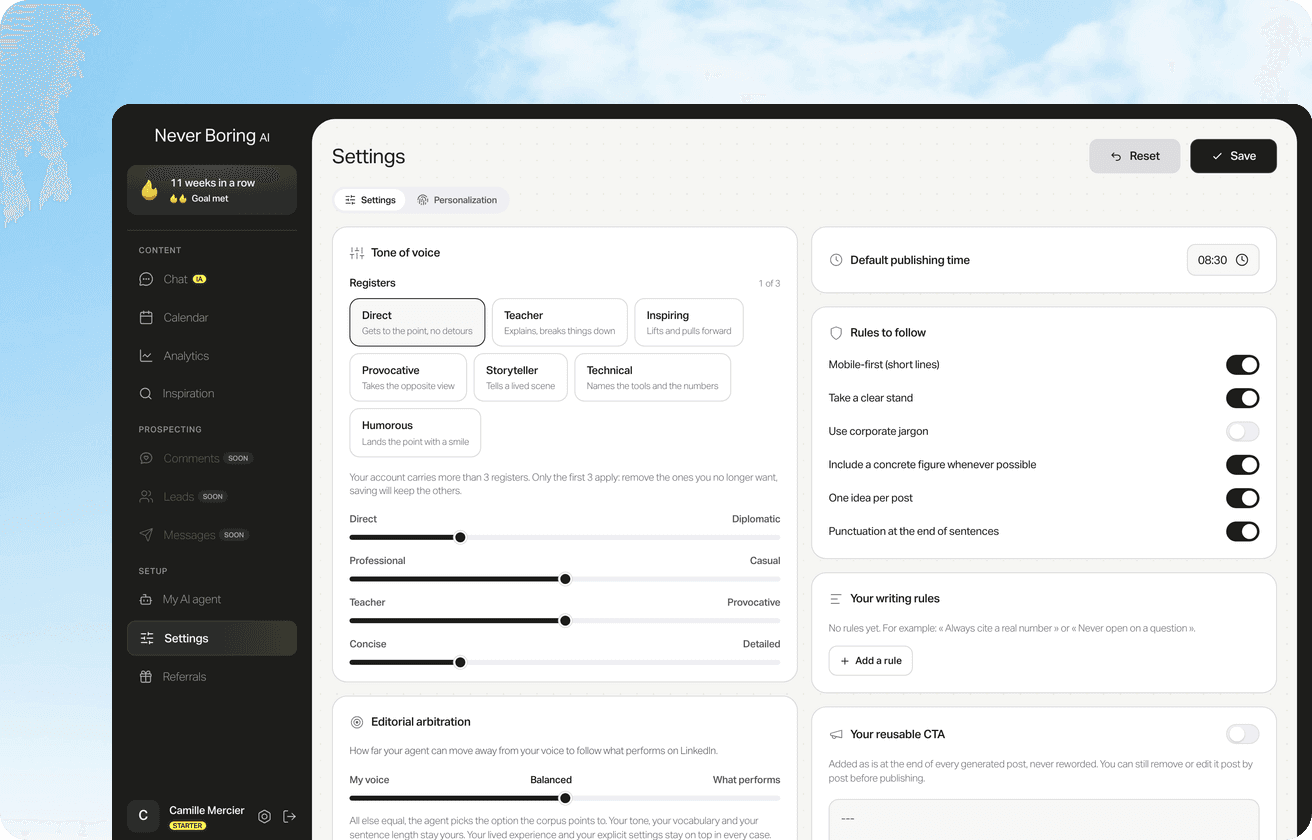
Never Boring AI's AI LinkedIn post generator drafts in your voice. Hook, sentence length, emojis, how you sign off: you set your preferences once, and the agent applies them to every post.
👇 Which emojis show up most in LinkedIn posts?
The most common emojis are the ones that show up in the most posts, not the ones that bring the most results. Across the 1,367 posts from our users pulled on November 5, 2026, here is the ranking by number of posts containing each emoji, with how many of the 18 authors use it: 👇 in 126 posts (12 authors) 👉 in 107 posts (11 authors) 🔗 in 75 posts (5 authors) ➡️ in 72 posts (5 authors) ✅ in 63 posts (10 authors) 🙌 in 53 posts (7 authors) 🔥 in 50 posts (13 authors) 👀 in 48 posts (9 authors) 🚀 in 45 posts (10 authors) Method: a count of common emoji characters in the text of every post of at least 50 characters. The author count matters as much as the post count: an emoji used by 5 authors may come down to one or two people's habits. The 🔥, on the other hand, is the most widely shared: 13 of the 18 authors use it.
What jumps out: the top emojis don't decorate, they point. Pointing fingers, arrows, checkmarks: they act as bullets or announce a link, and 🔗 almost always flags a URL. In this dataset, more than 1 post in 5 puts an emoji at the very start of a line, like a bullet point. About 15% put one in the first line, the one readers see before "… more". None of this says what works. It says what these authors do, which makes it a decent starting map if you want emojis that do a job rather than just add sparkle.
The first line is the one that counts
An emoji won't rescue a weak hook. How to write a LinkedIn first line that makes people click "… more", with examples.
Which emojis to skip on LinkedIn
Emojis to skip are less a blacklist than a matter of context. A few cases come up again and again. In your name. This one isn't about taste: according to LinkedIn's help center, the name field may only hold your real or preferred professional name, and LinkedIn doesn't allow characters that don't reflect it. The 🚀 after your first name has to go. Emojis with a second meaning. Some fruits and vegetables lead a double life online. If you're unsure what an emoji implies, pick another one. The emoji that clashes with the tone. A 😂 under a farewell post or a 🎉 on bad news, and the whole post derails. The emoji that replaces a word. "Our 🆕 offer 🚀 for 💼" reads like a rebus. The word is clearer than the drawing. The emoji wall. An emoji at the start of every line, arrows everywhere: Never Boring AI's post generator page lists emojis on every line among the formatting tics that give away a generated text.

🔗 Is there a LinkedIn logo emoji?
A LinkedIn symbol usually means the brand's "in" logo, and there is no standard emoji for it: your keyboard won't offer one. That's not an oversight. The Unicode Consortium, which maintains the official emoji list, automatically declines proposals for logos and brands, according to its emoji proposal guidelines. If you want the icon on a resume or an email signature, the official logo can be downloaded from LinkedIn's brand site, brand.linkedin.com, once you accept its brand usage terms. Inside a post, a 🔗 or a 👉 is enough to point to a profile link: the 🔗 already shows up in 75 posts from our users' dataset. As for typographic symbols, the ones in the list above (→, •, ✓, ★) make neat, low-key bullets in your headline or About section, where a full-color emoji can feel too chatty.
LinkedIn emoji reactions: what each one means
LinkedIn reactions are the icons you pick under a post or comment, by hovering over Like on desktop or pressing and holding it on mobile. Here is what each one means, according to LinkedIn's help center: Like: the basic thumbs-up. Celebrate: cheering an announcement, a promotion, a project shipped on time. Support: showing empathy to someone going through a hard time. Love: a post that warms your heart or resonates with you. Insightful: a post that makes a great point or shares useful advice. Funny: a post that made you laugh, in a professional setting. One practical note: reactions aren't something you type. If you want to cheer in a comment, 👏 is still your friend.
The rest of the formatting
Length, line breaks, bold, first line: everything that makes up the format of a LinkedIn post, beyond emojis.
Bottom line: LinkedIn emojis that serve the text
To add emojis on LinkedIn: the emoji icon in the post box on desktop, the emoji key on your phone keyboard, and copy and paste for everything else. The most common ones in our users' posts are there to guide: 👇, 👉, ➡️, ✅. In the Never Boring AI corpus of French-language posts, the median is one emoji per post and 42% of posts have none, which leaves plenty of room for your own style. Keep your name emoji-free, check the rendering in a preview, and give every emoji a job. And if you want posts that sound like you, emojis or not, Never Boring AI builds your posting plan and drafts your posts in your voice.
Posts in your voice, every week
Tell the agent about your business: it builds your posting plan, drafts your posts in your voice and publishes them on LinkedIn. Free trial.
What questions come up most often?
The questions that keep coming up on this topic, and how we answer them.
On desktop, click Start a post, then the emoji icon in the post box, according to LinkedIn's help center. In messaging, the emoji icon sits below the message box. On mobile, use the emoji key on your phone keyboard. For your headline, About section or comments, copy and paste from a list, or open your system's emoji panel: Windows key + period on Windows, Fn + E on a Mac.
Read next
Your first content plan and your first 3 posts are on us
Create your account, no credit card needed, and walk away with your first post in minutes. Your LinkedIn calendar then runs on its own.


Already used by
249 founders