LinkedIn newsletter: how to create one and get readers
You can create a LinkedIn newsletter in a few clicks on a computer: Write article, the Manage menu, Create newsletter. Every member has access, no creator mode needed. Getting people to read it is another story. The good news: LinkedIn invites your connections and followers to subscribe as soon as your first edition is out, then notifies subscribers every time you publish. The rest comes down to your name, your cadence and the posts you share between editions.
📰 What is a LinkedIn newsletter?
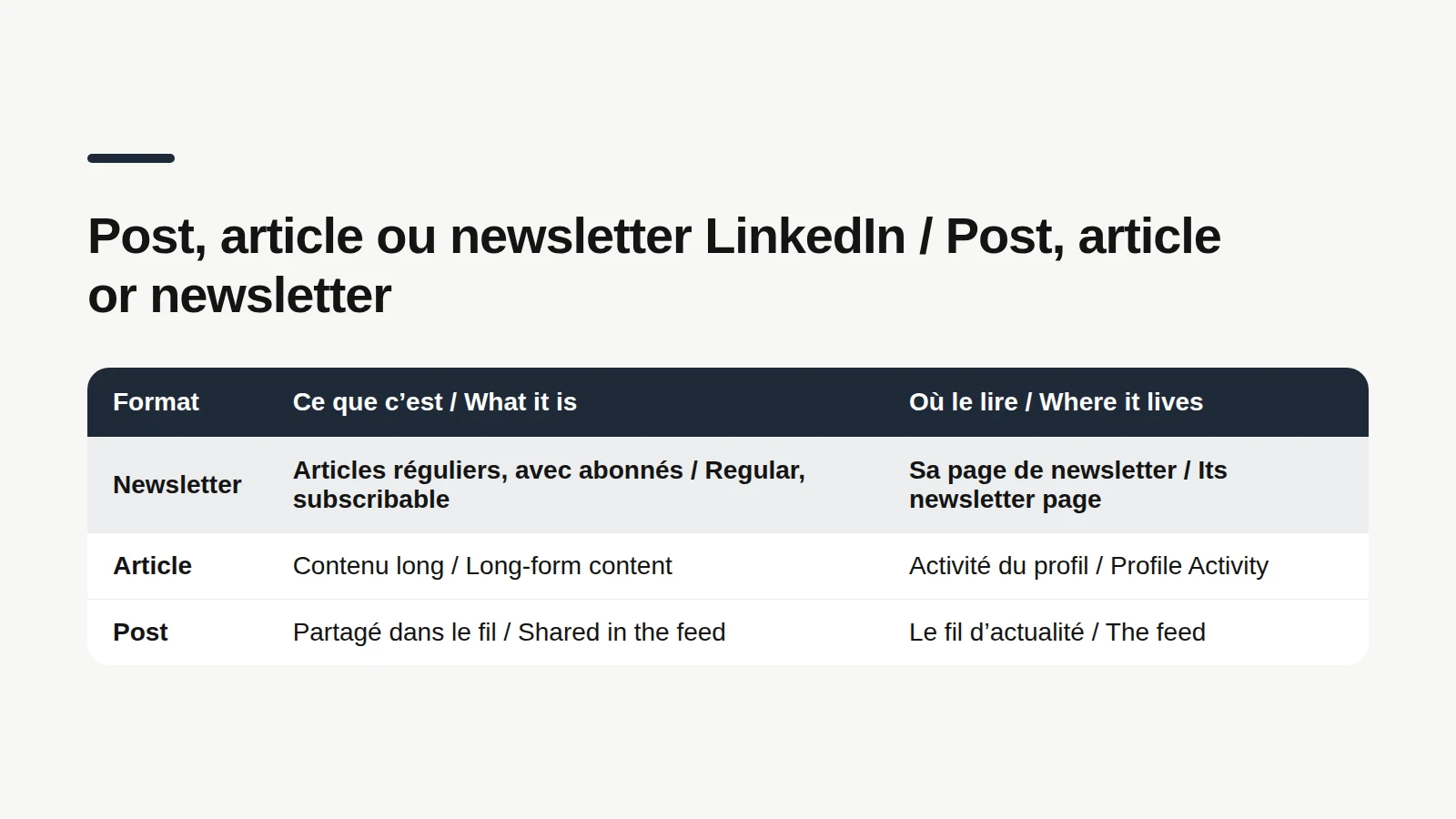
A LinkedIn newsletter is a series of articles published on LinkedIn on a regular basis, usually around one topic, that members can subscribe to. That's how LinkedIn's own help center defines it, and the word doing the heavy lifting is "subscribe". A post lives in the feed. An article is long-form content that sits in the Activity section of your profile. A newsletter is an article that keeps coming back on a schedule, with a list of readers who asked to be told when it does. And they do get told. After each edition, LinkedIn sends every subscriber a push, in-app and email notification, according to its newsletter help page. No double-pinging either: if a subscriber already saw the in-app or push notification, they shouldn't get the same one by email. So you're no longer relying on the feed alone to be seen. You've got a mailbox at every reader's place.
Who can create a LinkedIn newsletter?
Every LinkedIn member. The help center is blunt about it: "All LinkedIn members have access to create a newsletter on LinkedIn." For a personal profile, there's no audience threshold to hit. You'll still find guides telling you to turn on creator mode first. LinkedIn's published access criteria, checked on November 28, 2026, don't mention it: the only conditions they set are for Pages. For a LinkedIn Page, three criteria matter: more than 150 followers and/or connections to be evaluated, recent original content (posts, images, videos, articles), and a record of following LinkedIn's Professional Community Policies. You also need to be a super admin or content admin of that Page. If the option doesn't show up in the admin view, the Page may not meet the criteria yet.
🛠️ How to create a LinkedIn newsletter, step by step
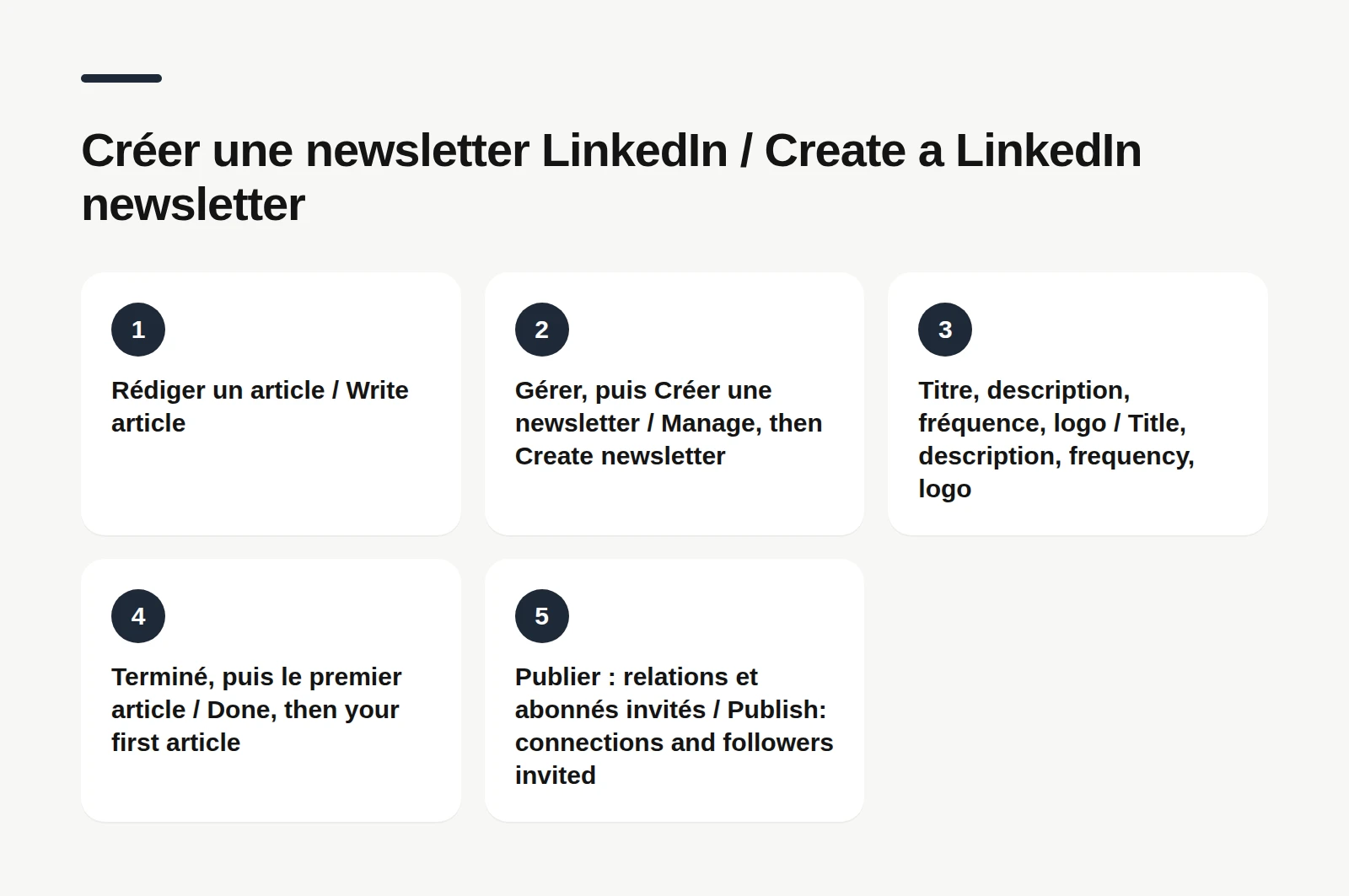
You'll need a computer: LinkedIn's help center notes that writing articles isn't available in the mobile app. Here's the path, with the labels you'll see on screen: 1. Click Write article at the top of your homepage. 2. If you manage a Page, pick the account you're publishing as (Publish as), then click Next. 3. Open the Manage dropdown near the upper right and select Create newsletter. 4. Add a newsletter title, a description, how often you want to publish and, if you like, an image or logo. 5. Click Done. Your newsletter title now shows near the upper right corner: you can write your first article. For a Page, there's also a route through the admin view: Create in the left menu, then Create a newsletter.
Three rules to know before you click. An author can run up to five newsletters at a time, each with as many editions as they want. After creating or deleting a newsletter, you have to wait two weeks before creating a new one. And LinkedIn asks you to keep emojis out of the newsletter title, so save the rockets for your posts.
One edition, several posts
Paste a newsletter edition into Never Boring AI's free tool. It pulls out one LinkedIn post built on a single idea, instructed to use only what's in your text, and emails it to you with two alternative hooks to compare.
✍️ Name, description, logo and image sizes
The name does the first round of sorting. LinkedIn recommends a name that describes a clear theme your audience gets right away. "Jordan's Notes" says nothing. "The Monday UX Memo" tells you who it's for and when it lands. Jordan is made up. The problem isn't. The description finishes the job: who the newsletter is for, what's inside, how often it shows up. Pick a cadence you'll actually keep, because LinkedIn then recommends sticking to it so subscribers can engage with your content regularly. For images, the help center gives two numbers: a 300 x 300 pixel logo for the newsletter, and a 1920 x 1080 pixel cover image for each article. It suggests skipping clipart and generic stock images, and notes that images with faces and people tend to resonate more with audiences.
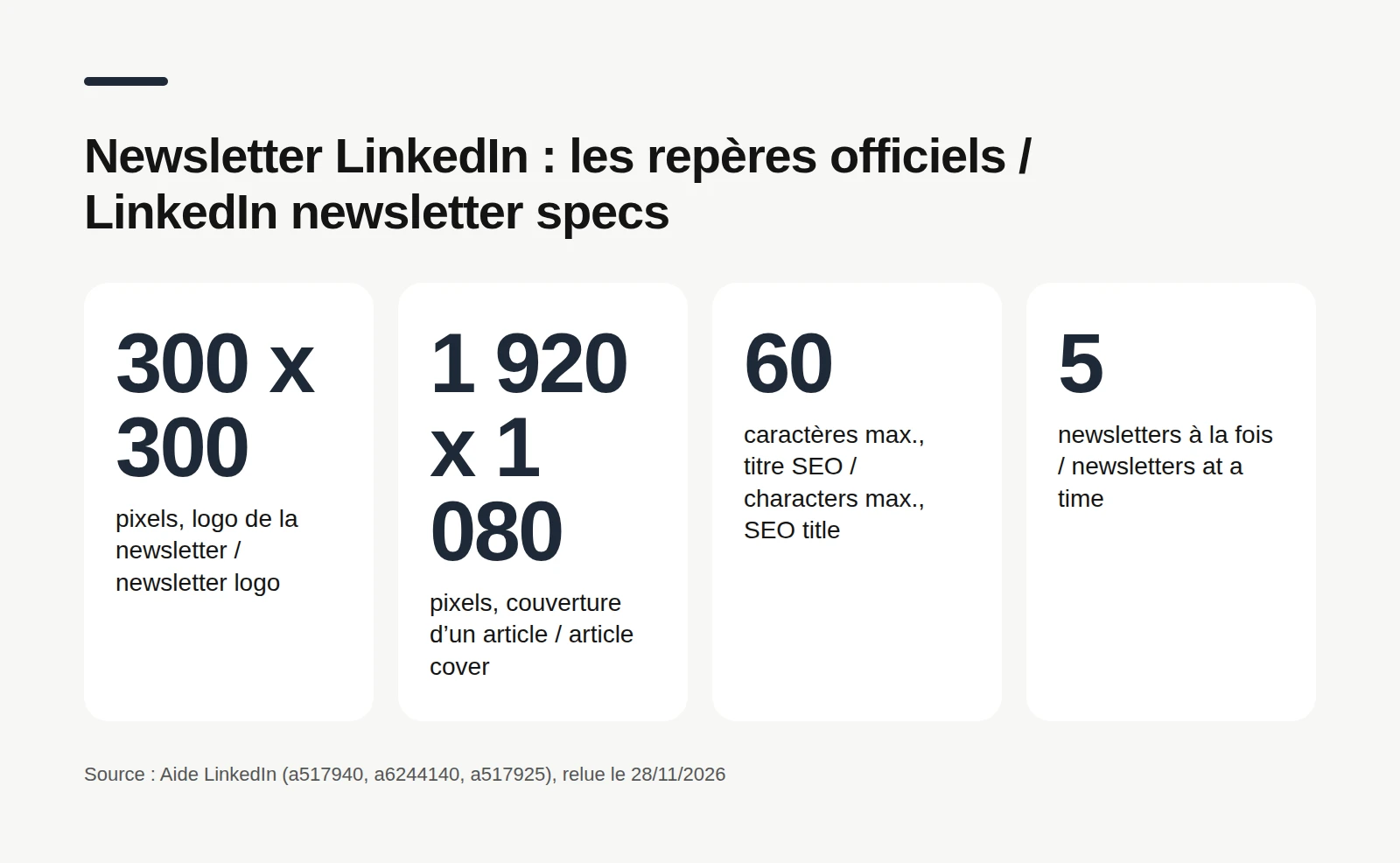
One last setting most people skip: the SEO title and description of each edition. According to LinkedIn's help center, they replace your article's title and first lines in search engine results such as Google. The SEO title gets cut off past 60 characters, and LinkedIn suggests a description of 140 to 160 characters. Use the words your readers actually type, not the clever pun from your headline.
🚀 Your first edition invites your whole network
Your first edition pulls double duty. By default, according to LinkedIn's help center, your connections and followers get a notification inviting them to subscribe as soon as the first article of your newsletter is published. That invite goes out to all your connections and followers, so don't waste it on a "test" issue. When you hit publish, LinkedIn opens a window so you can add context: what this edition is about, a question for your readers, people or Pages tagged with "@". When you click Post, the newsletter also gets shared in the feed. That little blurb is your launch post. Treat it like a real post, with a real first line. Once the first article is live, LinkedIn automatically creates a newsletter page: an overview, your profile info and the list of editions. Anyone can view it without logging in, but people need to log in to subscribe. That's the link to share everywhere.
📣 How to get readers for your LinkedIn newsletter
Notifications do part of the job. The rest is on you. LinkedIn's own best practices come down to five moves: 1. Share each edition with a few lines of commentary or a question, and ask people to subscribe. 2. Share your editions or your newsletter page on your other social channels and by email. 3. Give every edition a clear headline that says what it's about. 4. Stick to the cadence you announced. 5. Switch the Connect button on your profile to Follow, so profile visitors can follow what you share. That last one has a handy side effect: when someone starts following you, LinkedIn automatically sends them a notification inviting them to subscribe to your newsletter. Every new follower becomes a potential reader. You'll find the setting under Settings & Privacy, Visibility, Followers, in the Make follow primary section.
Between editions, there are your posts. The one announcing an edition doesn't need to summarize everything. For a sense of scale, in Never Boring AI's corpus (2,070 French-language LinkedIn posts from 45 authors, published from March 2025 to November 2026), half the posts run between 860 and 1,690 characters, with a median of 1,235. These numbers describe what gets published, not what performs: they give you a ballpark, nothing more.
A month of posts around your newsletter
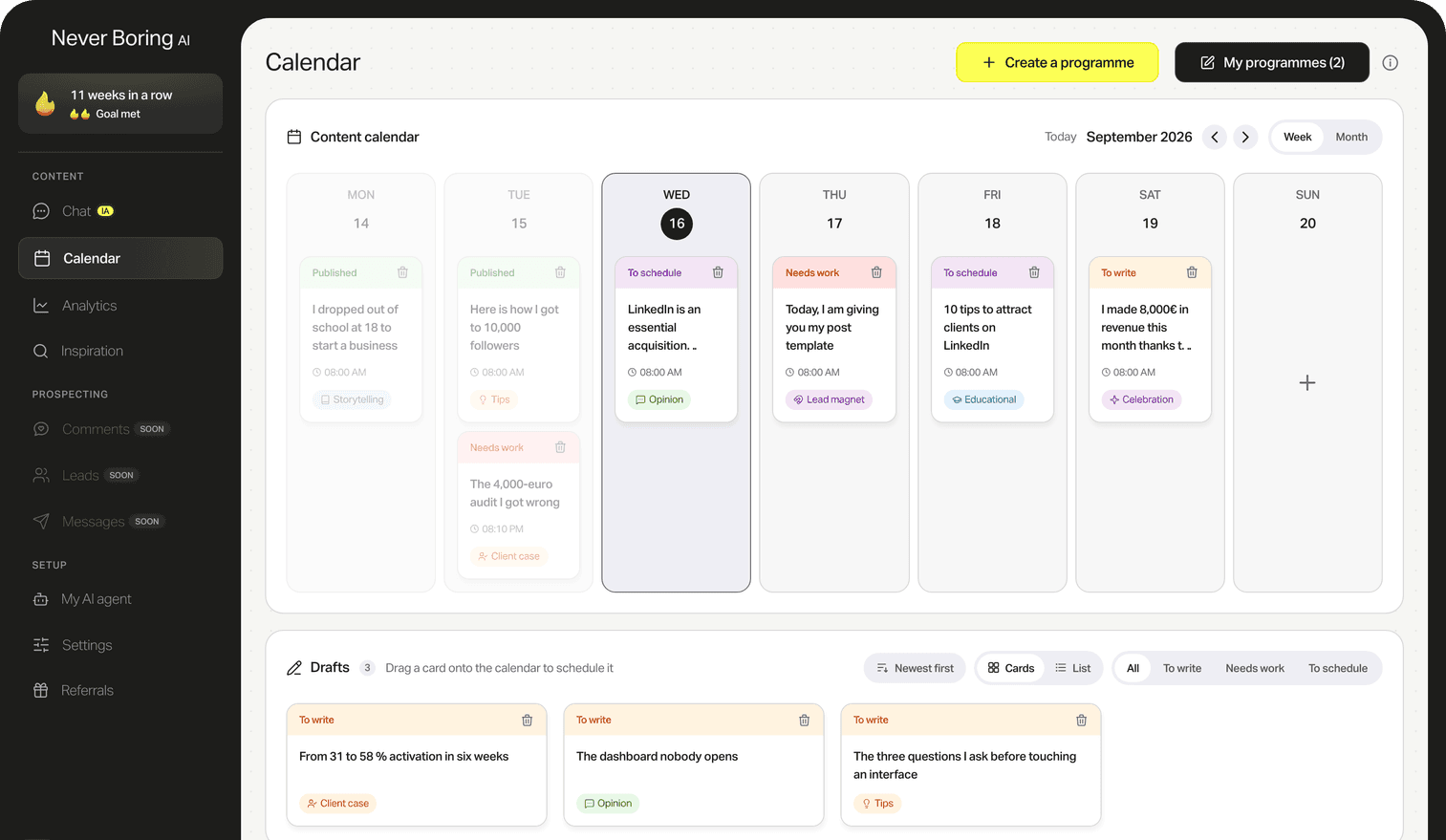
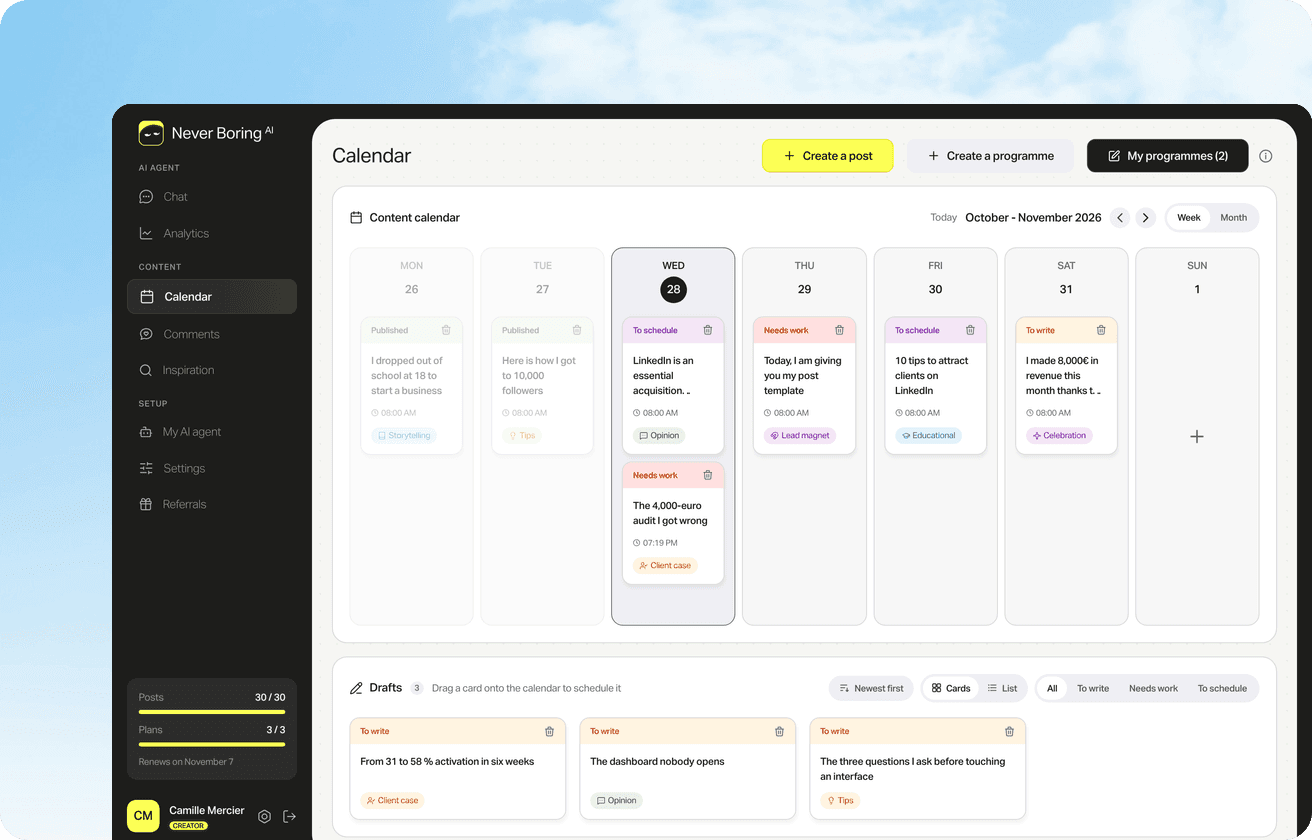
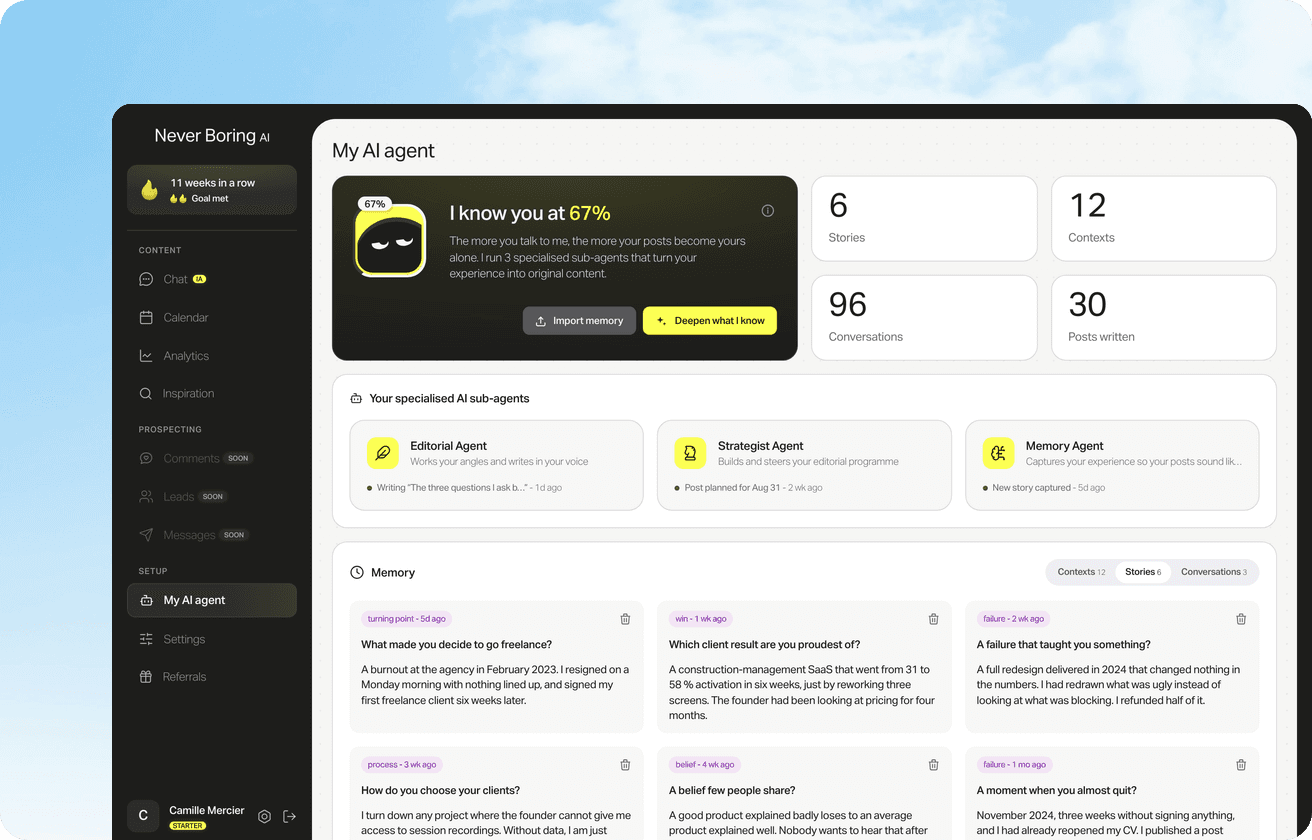
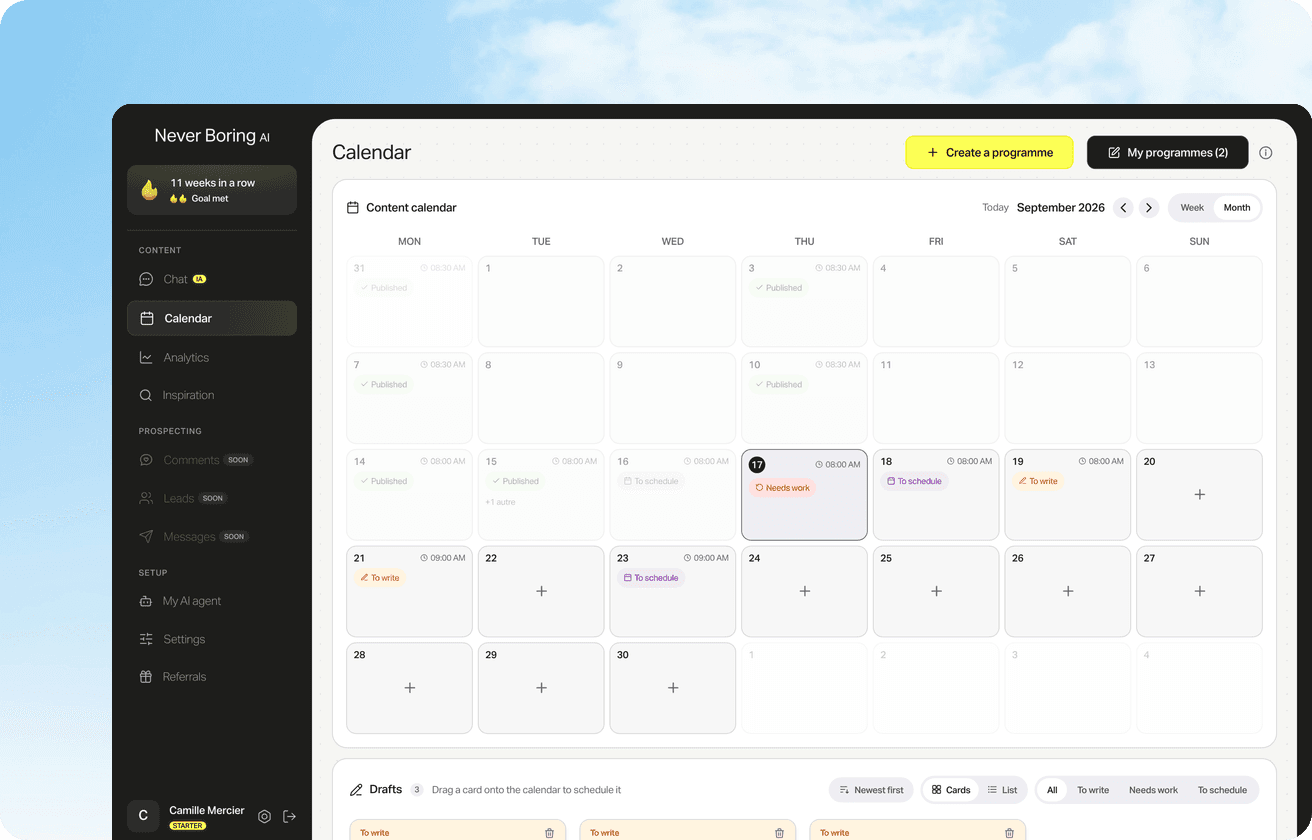
Never Boring AI builds your LinkedIn content calendar from your offer, your audience and your content pillars, then drafts the posts in your voice. You know what to post between editions, and when.
📈 LinkedIn newsletter analytics
LinkedIn gives newsletter authors an analytics page for each newsletter. To open it: click the Me icon, your profile card, scroll to the Activity section, click Newsletter, pick your newsletter, then View analytics at the top of its page. You'll get, over a range of 7 to 365 days: article views (a member opening an edition, on LinkedIn or in the newsletter email), new subscribers, plus impressions and engagements on the posts that contain your editions. Another section shows who your subscribers are: job titles, company, company size, seniority and locations. Analytics cover editions published within the last two years. If you're a freelancer, the demographics deserve a close look. If your subscribers are mostly peers while you sell to small-business owners, look at your topic before you touch your cadence.
The rest of your LinkedIn numbers
For your posts and profile, our guide to LinkedIn analytics tools walks through what LinkedIn shows you and the tools that go further.
Are LinkedIn newsletters worth it?
Yes, if you have a topic you can keep coming back to. LinkedIn spells out what a newsletter gives you: a notification to every subscriber for every edition, an invitation to your connections and followers at launch and then to each new follower of your profile, and a public page you can share off LinkedIn. What it asks of you: a long-form article, on schedule, on top of your posts. In our users' posts, the word doesn't come up much. Out of 1,534 posts of at least 50 characters published from January 2025 to November 27, 2026 by the 20 LinkedIn accounts connected to Never Boring AI, a French product (snapshot taken November 28, 2026, team and test accounts excluded, reposts excluded), 12 contain the word "newsletter", across 5 accounts, whether it refers to a LinkedIn newsletter or an email one. This snapshot covers these accounts' posts, not articles: it shows these accounts rarely mention newsletters in their posts, not what newsletters are worth. If one post a week already feels like a stretch, announce a monthly cadence and keep it. LinkedIn asks you to stick to the cadence you chose, not to pick the fastest one.
Bottom line: a newsletter, with posts around it
You create a LinkedIn newsletter from a computer, through Write article and the Manage menu, and every member has access. Take care of the name, the description and your first edition, since that's what triggers the invite to your whole network. After that, LinkedIn notifies subscribers each time you publish. Your job is to keep the cadence and post between editions. For the posting part, Never Boring AI builds your LinkedIn content plan, drafts posts in your voice and schedules them. You save your energy for the newsletter.
Your LinkedIn posts, planned and drafted
Free trial, no credit card. Never Boring AI starts from your offer, your audience and your content pillars to tell you what to post and when.
What questions come up most often?
The questions that keep coming up on this topic, and how we answer them.
On a computer, click Write article at the top of your homepage, open the Manage dropdown near the upper right and select Create newsletter. Add a title, a description, how often you'll publish and, optionally, a logo, then click Done. Then write your first article: publishing it invites your connections and followers to subscribe.
Read next
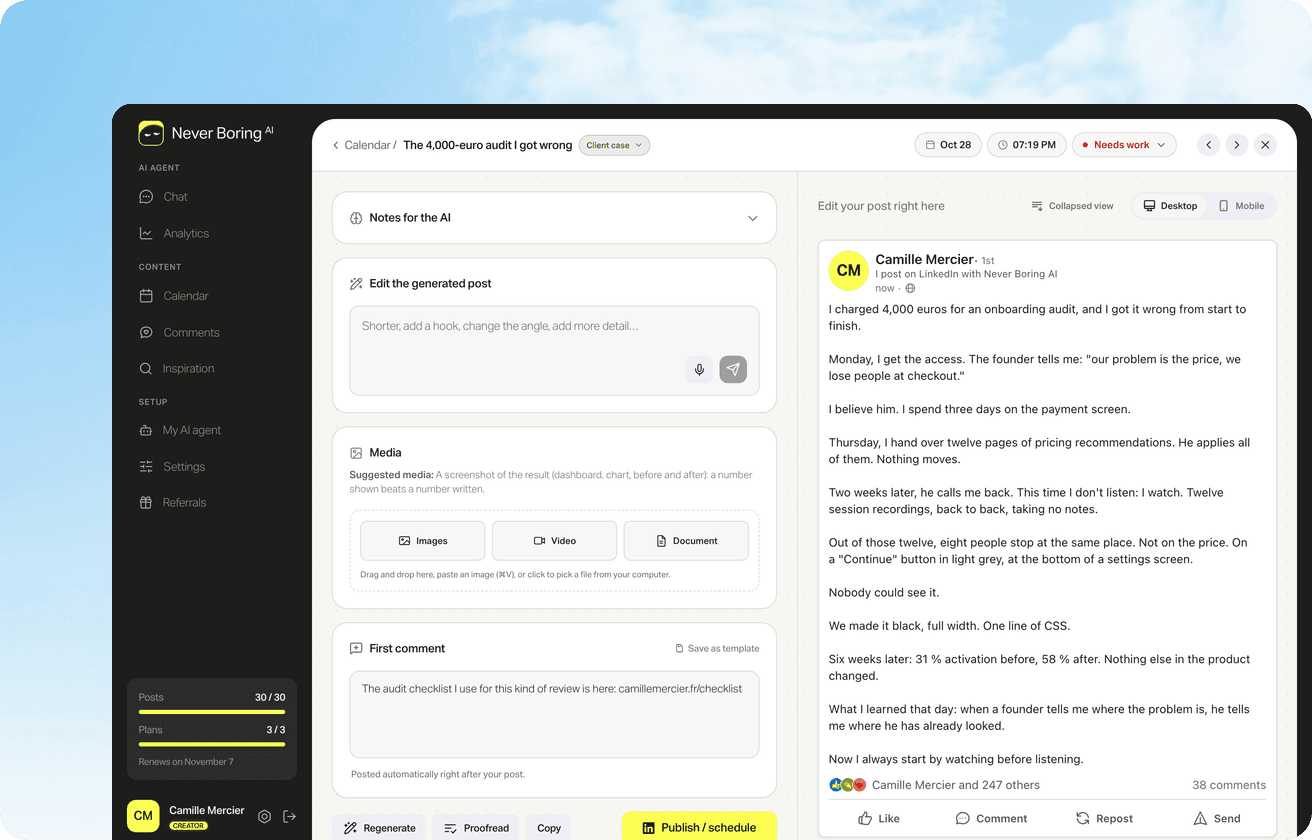
Your first content plan and your first 3 posts are on us
Create your account, no credit card needed, and walk away with your first post in minutes. Your LinkedIn calendar then runs on its own.


Already used by
264 founders