How to post on LinkedIn: write and publish step by step
To post on LinkedIn, click "Start a post" at the top of your homepage, choose who can see and comment, write up to 3,000 characters, add a photo, video or document if you like, then hit "Post" or the clock icon to schedule it. That's the process from LinkedIn's own help center, checked on November 21, 2026. The button has never scared anyone. The blank box above it is another story.
✍️ What counts as a LinkedIn post?
A LinkedIn post is a short update you share from the box at the top of your LinkedIn homepage. According to LinkedIn's own help center ("Post and share updates"), it can hold up to 3,000 characters of text, plus a photo, a video, a document, a poll or an event. Don't mix it up with a LinkedIn article. Articles go through LinkedIn's publishing tool, with a headline, a cover image and richer formatting, and LinkedIn itself points you there when your text runs past 3,000 characters. One catch worth knowing: LinkedIn's help page says writing articles isn't available in the mobile app. Once it's live, your post shows up in your connections' feeds and in the Activity section of your profile. Set to "Anyone", it can also be seen by people who aren't signed in to LinkedIn, per the "Visibility of shared posts" help page. In other words, your post is your business card, even for people without an account.
🖥️ How to post on LinkedIn from your computer, in 5 steps
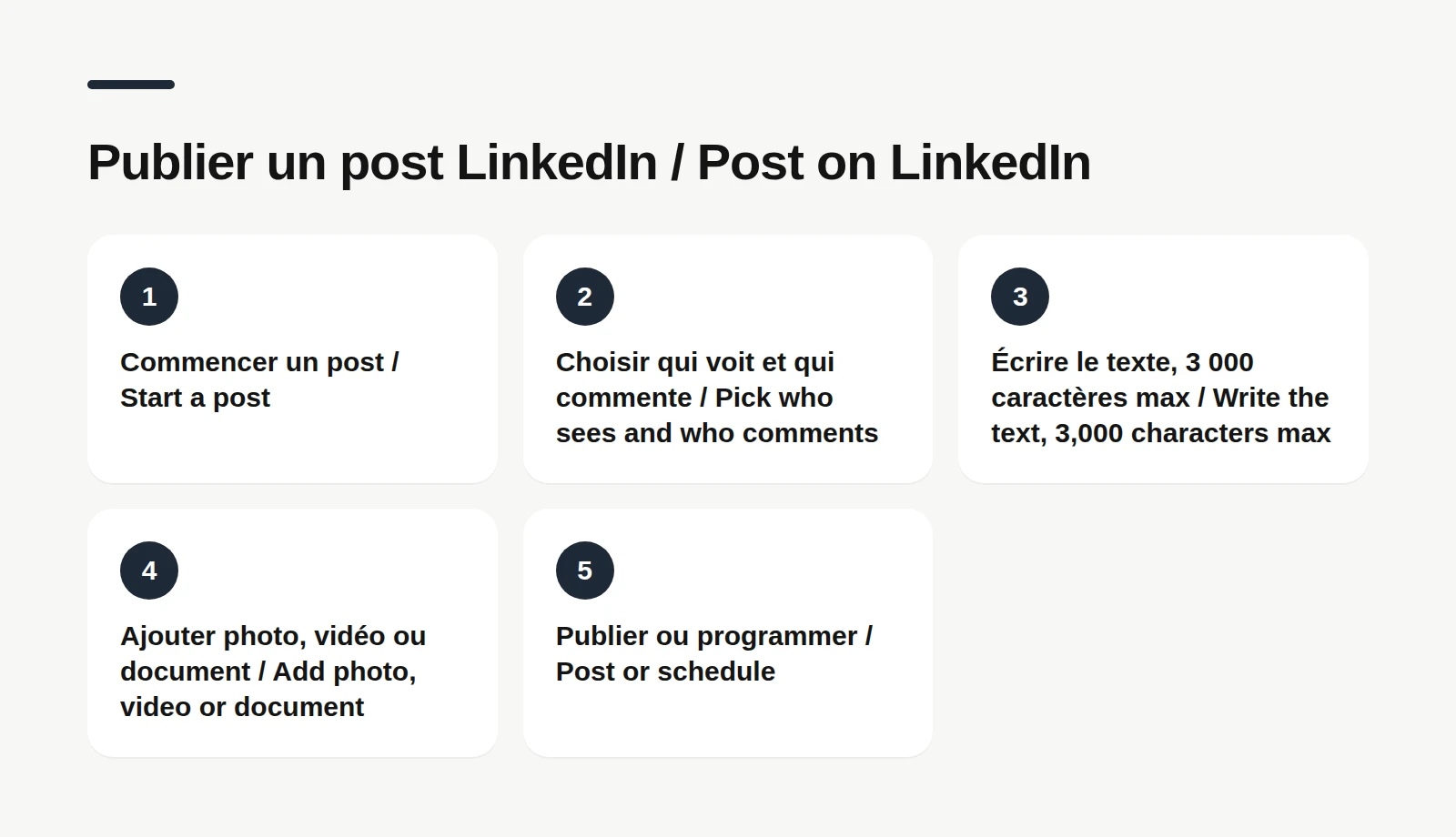
Here's the process as LinkedIn's help center describes it, checked on November 21, 2026: 1. Click "Start a post" at the top of your LinkedIn homepage. 2. Click your name at the top of the pop-up to choose who can see the post and who can comment on it. 3. Type your text in the "What do you want to talk about?" field. The icons at the bottom add an emoji, a photo or video, an event or a celebration; the Plus icon opens the rest (hiring, poll, document, services). 4. Read it again. Seriously: a typo in your first line gets noticed far more than one buried in line twelve. 5. Click "Post". Or click the clock icon if you'd rather schedule it for later. A handy shortcut from LinkedIn's help center: you can drag and drop or paste a photo straight into the share box. And if you're a super admin or content admin of a LinkedIn Page, you can also share updates as that Page right from your homepage.
📱 How to post on LinkedIn from the mobile app
On your phone the path is almost the same, with different labels: 1. Tap "Post" in the navigation bar. 2. Tap the "Anyone" dropdown next to your profile photo to set visibility and comment control. 3. Type your content in the "Share your thoughts…" screen. 4. Tap the Media icon for a photo or video, or the Plus icon for an event, a celebration, a job, a poll or a document. 5. Tap the clock to schedule it, or "Post" to publish now. If you manage a Page, LinkedIn's help center says you just tap your name to choose between your profile and the Page. For photos, the app takes up to 20 per post and lets you crop, straighten and add alt text before you publish. Mobile has one edge: you see your post on a small screen. If your hook works on a phone, it'll work anywhere.
⚙️ The settings to check before you hit Post
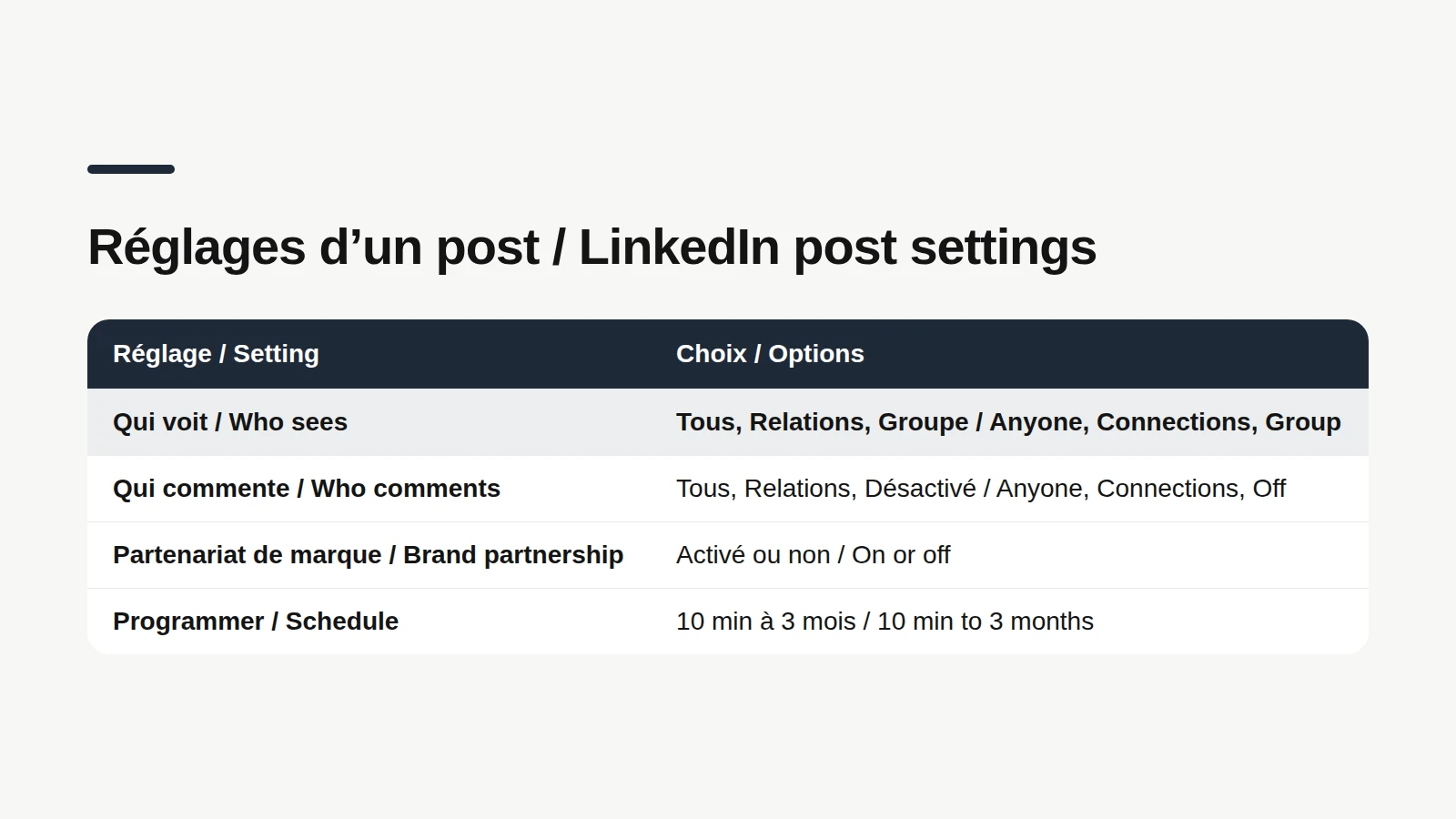
Three settings hide behind your name, and they matter more than people think. Who can see your post: "Anyone", "Connections only" or "Group". Heads up, LinkedIn's help center is clear that you can't change visibility after the post is shared. Whatever you pick also becomes your default for the next post. Who can comment: "Anyone", "Connections only" or "Off". Turning comments off makes sense for an official announcement, much less for a post that asks a question. Brand partnership: a toggle that labels the post as a brand partnership. If you're talking about a brand as part of a partnership, this is where you flag it.
Posting is easy. Writing is the hard part.
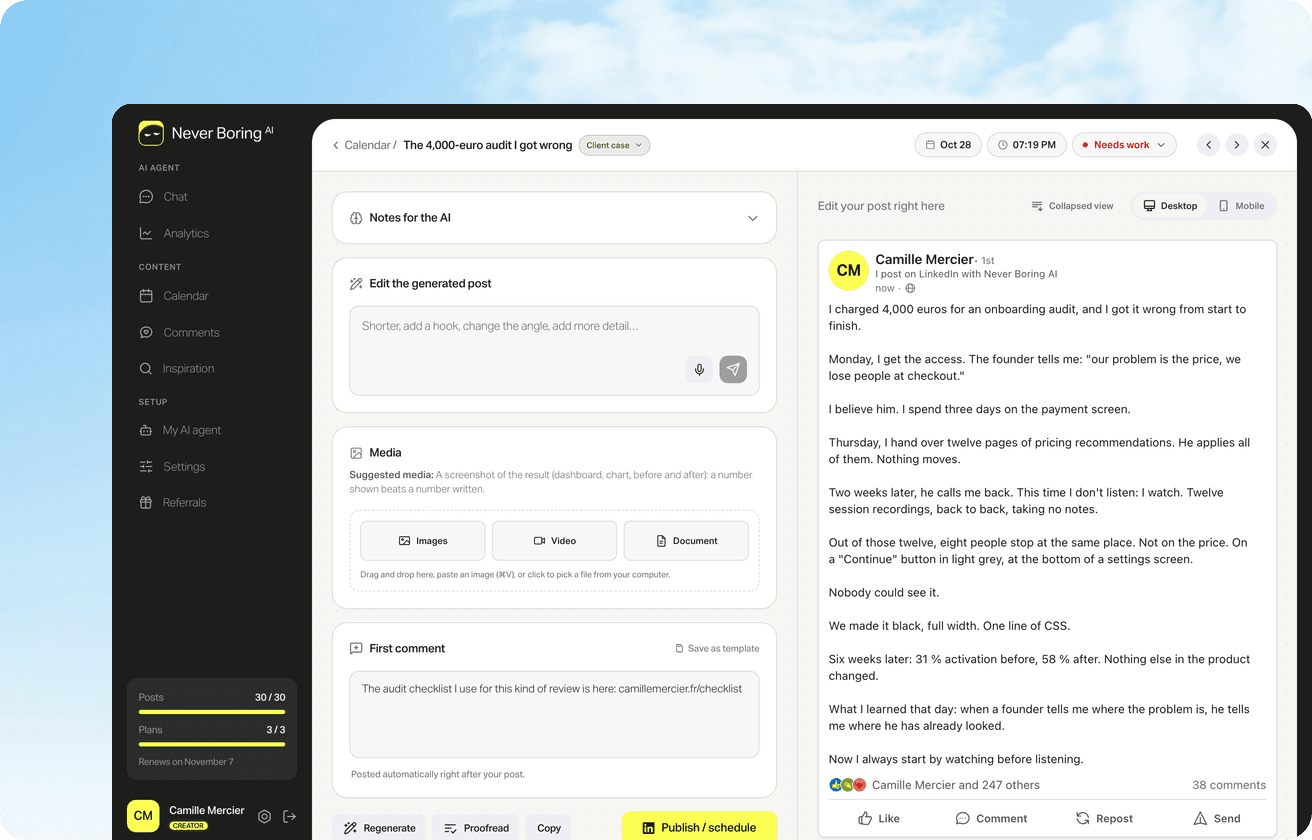
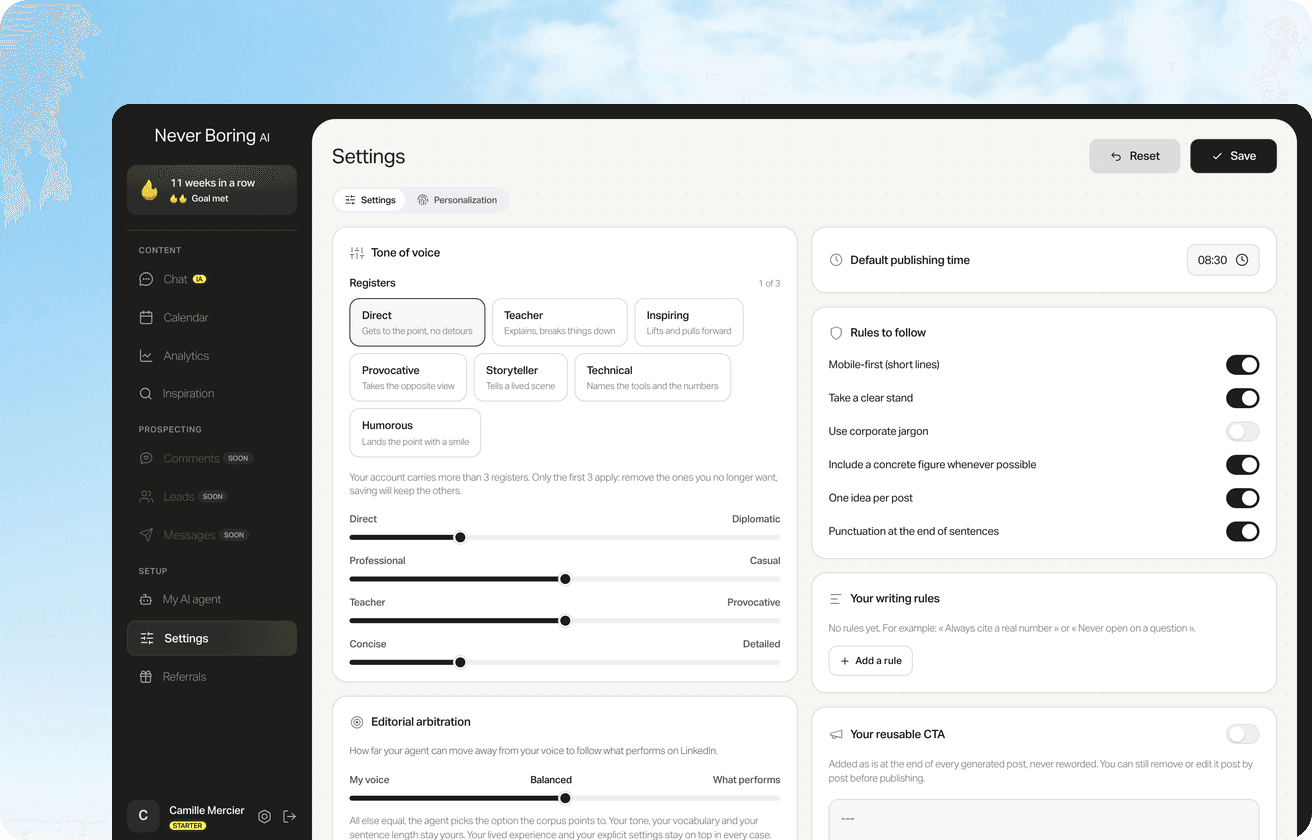
Never Boring AI's AI LinkedIn post generator drafts your post from your own experience, in your own voice, and shows you a preview of how it will look in the feed.
📝 Writing the post: a hook, one idea, an ending
LinkedIn cuts your text and shows "…more": whatever sits above that line decides whether anyone clicks. So put the promise of the post in your first line, not "Hi everyone". Where the cut falls depends on the screen, so aim short rather than for an exact line count. Then, one idea per post. A post that recaps your week, gives three tips and plugs a webinar says nothing. Short sentences, line breaks and one concrete example beat an abstract paragraph every time. Finally, an ending that does a job: a question if you want replies, a call to action if you want a click, or simply the line that sums it up. Take Jamie, a made-up freelance designer: her post about a client project that went sideways ends with "What red flag would you have spotted?". She opens the conversation instead of closing it.
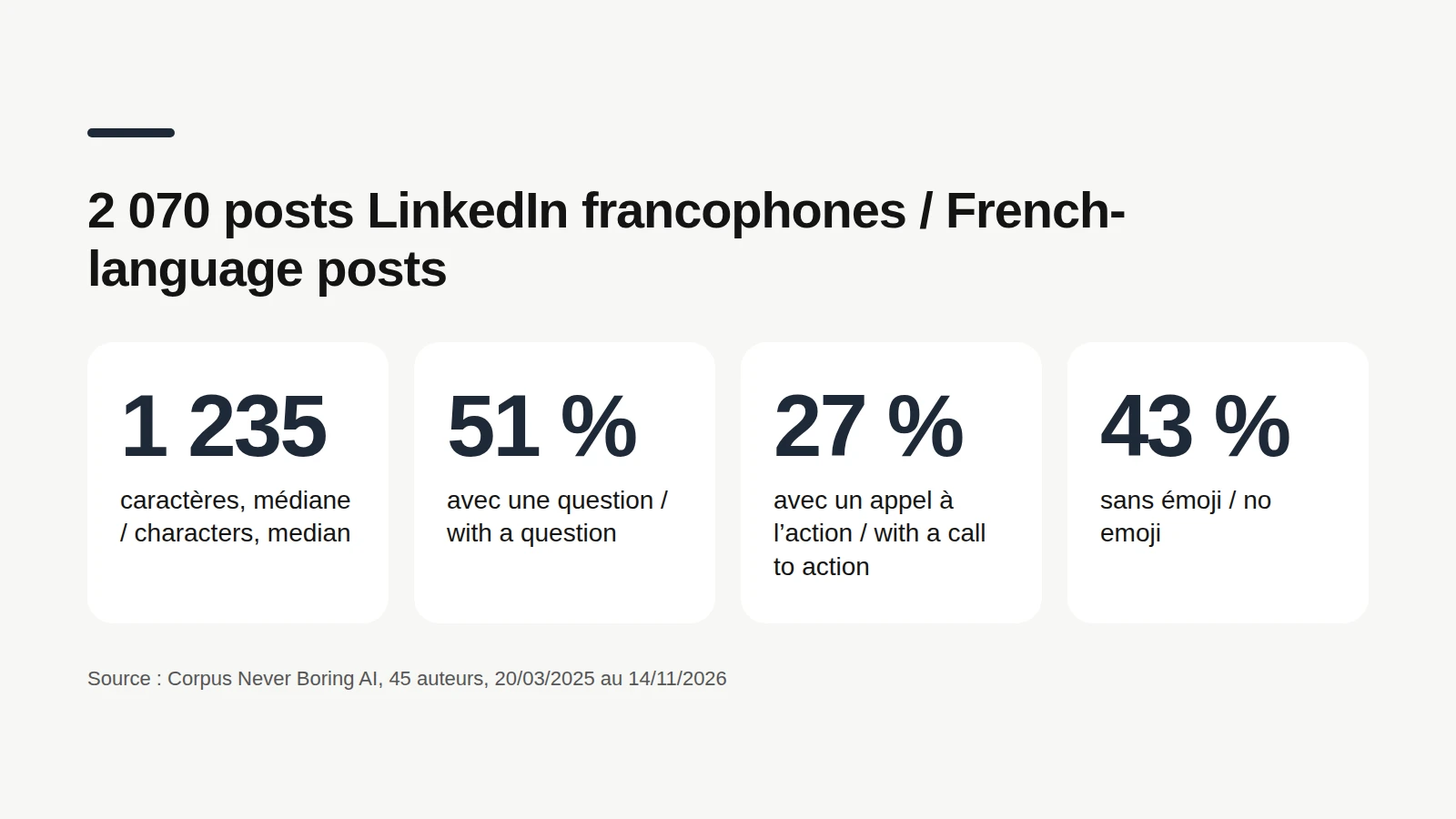
So how long should it be? In the Never Boring AI corpus (2,070 real, anonymized French-language LinkedIn posts by 45 authors, published between March 20, 2025 and November 14, 2026), half the posts run between 860 and 1,690 characters, with a median of 1,235. Nowhere near the 3,000 limit. In that same corpus, 51% of posts include at least one question and 27% a call to action. 43% use no emoji at all, and the median is one emoji per post. These numbers describe what gets published, not what works: an average isn't a recipe, these are French-speaking creators, and every audience reacts in its own way.
Writing with AI? LinkedIn has published best practices on exactly that. It doesn't judge the tool, it judges the result: content that's generic and lacks a clear point of view is less likely to be widely distributed, its help page says. LinkedIn asks you to review, edit and approve anything AI drafts for you, since you're responsible for what you post, and recommends saying so when you've relied heavily on AI. In short: AI can hold the pen, but the story has to be yours.
Your first line deserves its own guide
Hook types, examples and common mistakes: our LinkedIn hooks guide covers the one line that decides the "…more" click.
🖼️ Adding a photo, video, document or poll
A post can stay text-only, or carry media. For photos, LinkedIn's help center gives precise specs: up to 5 MB per file, at least 552 x 276 pixels, 1080 pixels wide recommended, and an aspect ratio between 3:1 (landscape) and 4:5 (portrait). Outside that range, LinkedIn centers the image and crops the rest. Once posted, a photo can't be resized. Video, documents (the famous PDF carousel) and polls go through the bottom icons or the Plus icon. Each format has its own size and length limits, and we've gathered all of them, with sources, in our post format guide. A free tip: fill in the alt text (the ALT button when you upload the image). LinkedIn offers it for members who use screen readers, and it takes thirty seconds.
Every size spec in one place
Photo, multi-image, video, document, link, text, profile photo and banner: our LinkedIn post sizes guide lists every limit with the LinkedIn help page that sets it.
⏰ Scheduling a post or saving it as a draft
Not ready to post? Click the "Cancel" button while you're writing and LinkedIn offers to save it as a draft. Drafts sync across your devices and reopen automatically the next time you start a post. The one limit LinkedIn's help center flags: photos and videos in a draft can't be edited, so you delete them and upload again. To schedule, click the clock, pick a date and time, then "Next" and "Schedule". According to LinkedIn's help center, you can schedule a post anywhere from 10 minutes to 3 months ahead, times follow your device's time zone, and events and job posts can't be scheduled. Your queue lives behind the clock icon, under "View all scheduled posts". So what time should you pick? On its marketing blog, LinkedIn sums up three studies: weekdays, during the workday, with lunchtime and mid-afternoon as slots worth testing. It adds right away that every audience is different. On our side, across 1,390 posts published by 18 Never Boring AI accounts (mostly French-speaking) between January 2025 and November 2026, 81% went out between 7 and 11 am, local time. That's an observed habit, not a rule.

When to post, exactly
The three studies LinkedIn sums up, the slots worth testing and the posting times of 1,390 measured posts: it's all in our best-time-to-post guide.
✏️ Editing or deleting a post after posting
Spotted a typo too late? No panic. Click the More icon (the three dots) at the top right of the post, then "Edit post", fix it and save. The word "Edited" then appears next to your post. Only the text can be edited, LinkedIn's help center notes. A shared photo, video, document or article can't be replaced, and a new URL won't show a new preview image. To change the media, you delete the post and publish a new one. One more quirk: the share box remembers the preview of the last link you shared for three days. To delete, same path: More icon, "Delete post", then confirm. LinkedIn warns that a deleted post may still show up in a digest email already sent to your connections.
🏢 How to post on LinkedIn as a company Page
Posting as a LinkedIn Page works a little differently from your profile. You need super admin or content admin access. Go to your Page admin view, click "Page posts" in the left menu, then "Start a post", and add text, a link, a photo, a video or a document. If you post a video, you can add your own captions or turn on automatic captions. A Page post can go to "Anyone" or a "Targeted audience", and comments can be left on or turned off. LinkedIn notes that the comment setting can still be changed on existing Page posts. Is it worth posting often from a Page? LinkedIn's own help center states that Pages that post weekly have five times more followers and grow seven times faster than Pages that post monthly. That's LinkedIn's figure, not ours, but it's a decent nudge to keep a rhythm.
🚦 Your pre-flight checklist before you post
Before you hit "Post", five quick checks: 1. The hook reads before "…more" and makes people want the rest. 2. The post carries one idea. 3. The text stays under 3,000 characters. 4. Visibility and comments are set the way you want, since visibility can't be changed afterwards. 5. You've read it out loud. If it lands spoken, it lands written. Want to see it before it goes live? Our free preview tool shows your post the way the feed will, "…more" cut included, and lets you add bold or italics.
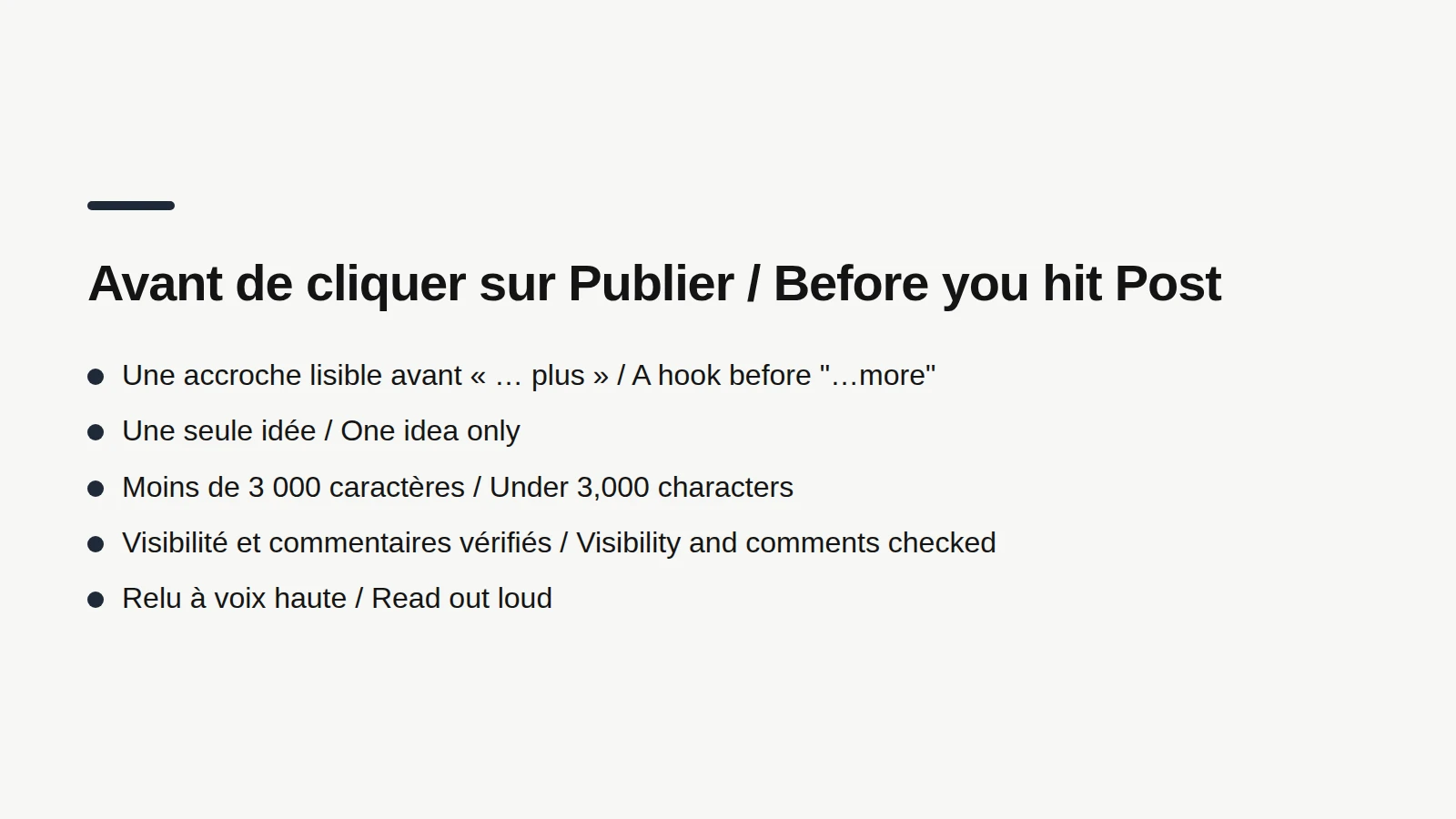
See your post before LinkedIn does
Paste your text: the free tool shows the desktop and mobile preview, with the "…more" cut, and puts your words in bold or italics.
Bottom line: one post, one idea, five clicks
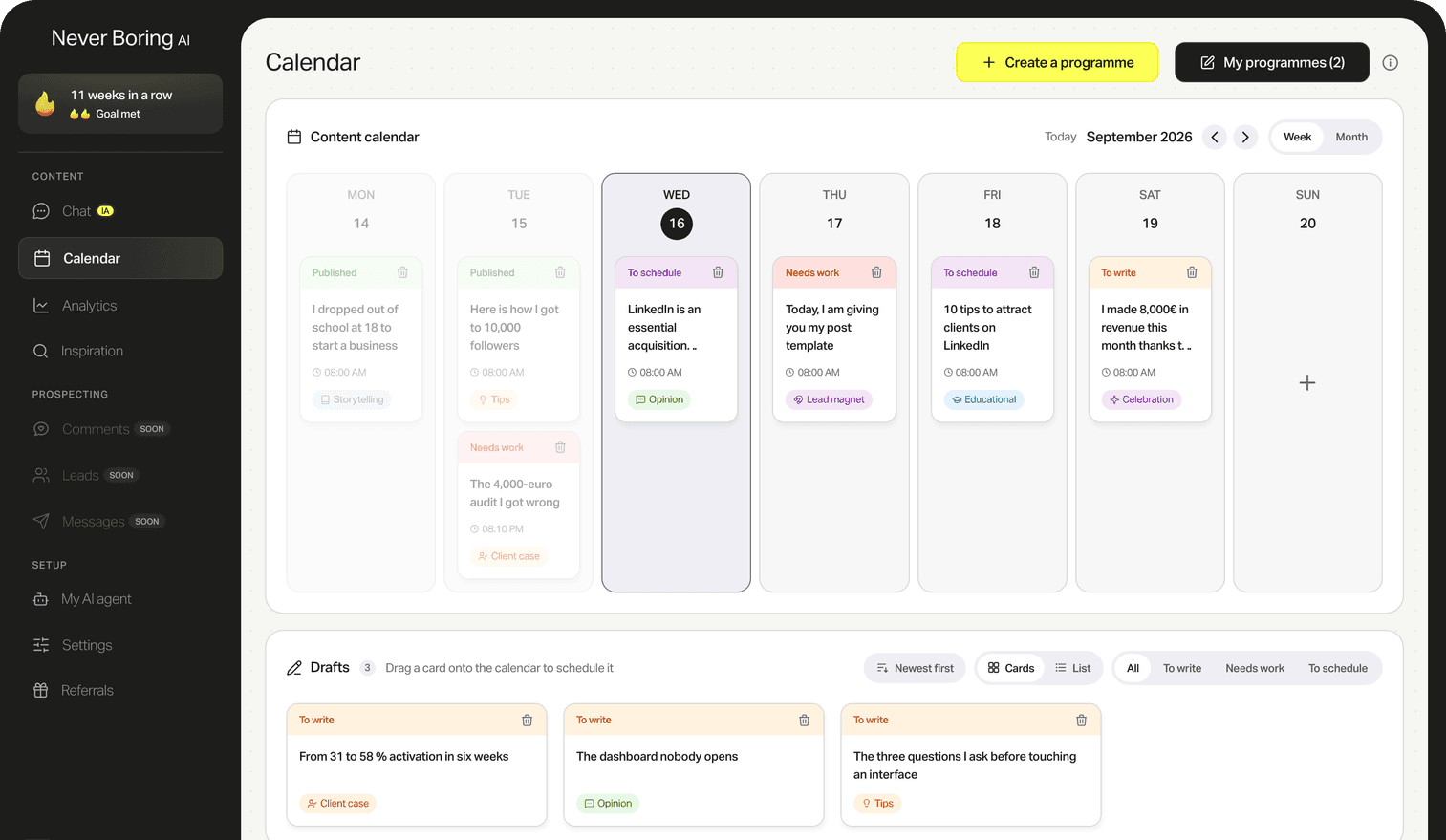
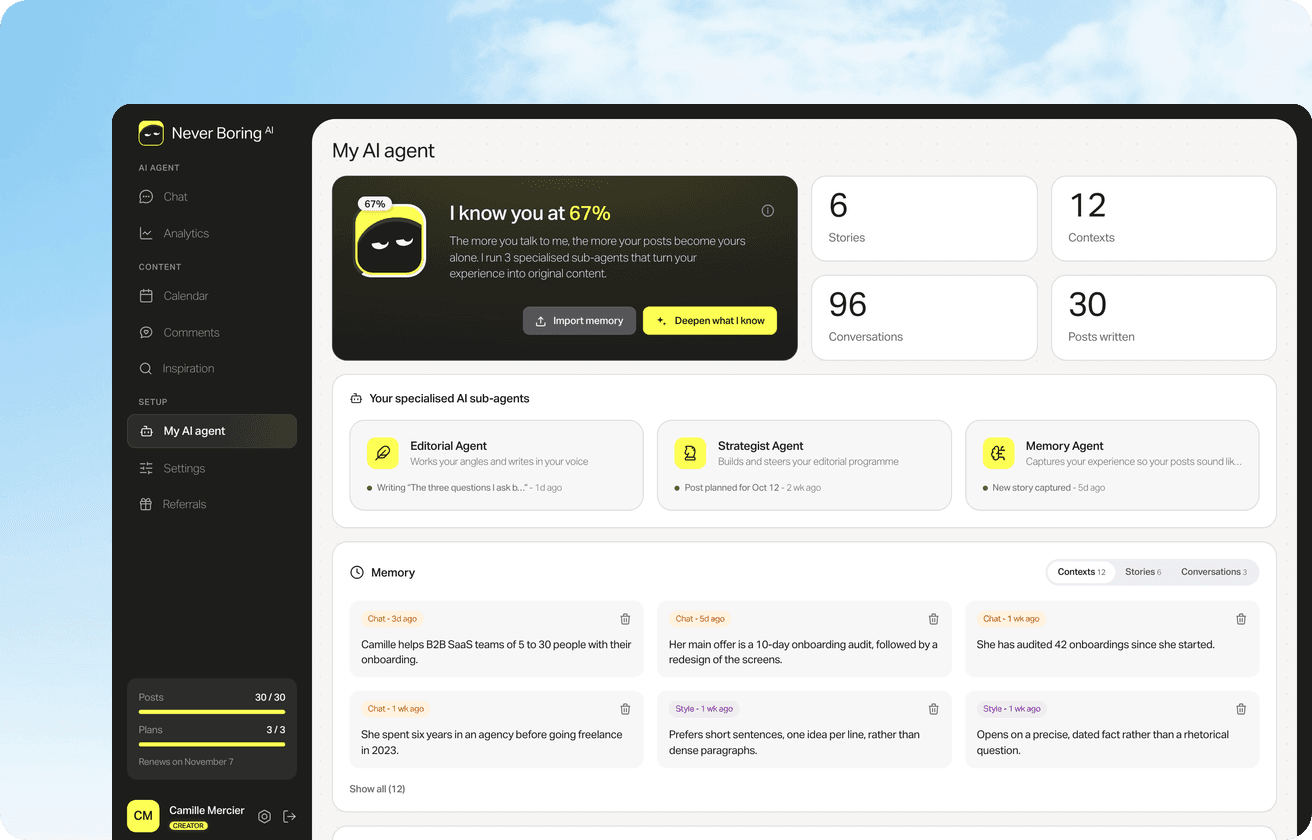
Posting on LinkedIn takes a minute: "Start a post", the settings, the text, media if you need it, then "Post" or the clock. The real work is elsewhere: figuring out what to say, writing it in your own words, and keeping it up week after week. That's exactly what Never Boring AI does. The AI agent builds your posting plan from your offer, your audience and your topics, then writes each post from your own stories. You review it, tweak it with one sentence, and it publishes to LinkedIn at the time you picked. More than 250 users already rely on it. The trial is free, no credit card needed.
Your next post, already drafted
Start your free Never Boring AI trial: your first LinkedIn posting plan, written from your own experience, no credit card. After that, Starter at €19 per month or Creator at €39 per month, VAT included, no commitment.
What questions come up most often?
The questions that keep coming up on this topic, and how we answer them.
Tap "Post" in the navigation bar, tap the "Anyone" dropdown to set who can see and comment, then type your text in "Share your thoughts…". Add a photo or video with the Media icon, or a poll or document with the Plus icon. Tap "Post" to publish, or the clock icon to schedule it, per LinkedIn's help center.
Read next
Your first content plan and your first 3 posts are on us
Create your account, no credit card needed, and walk away with your first post in minutes. Your LinkedIn calendar then runs on its own.


Already used by
259 founders